




An AI tool for removing the background from image files can save a lot of time. Instead of cutting around a person, product, logo, or object by hand, you can upload a photo and let the tool remove the background for you automatically.
This is useful for profile photos, product images, social media posts, presentations, thumbnails, and marketing designs. Many tools can create a transparent PNG in seconds, even if you do not have design experience.
If you need image background removal, there are several free and easy to use online tools you can check out.
What Is an AI Image Background Remover?

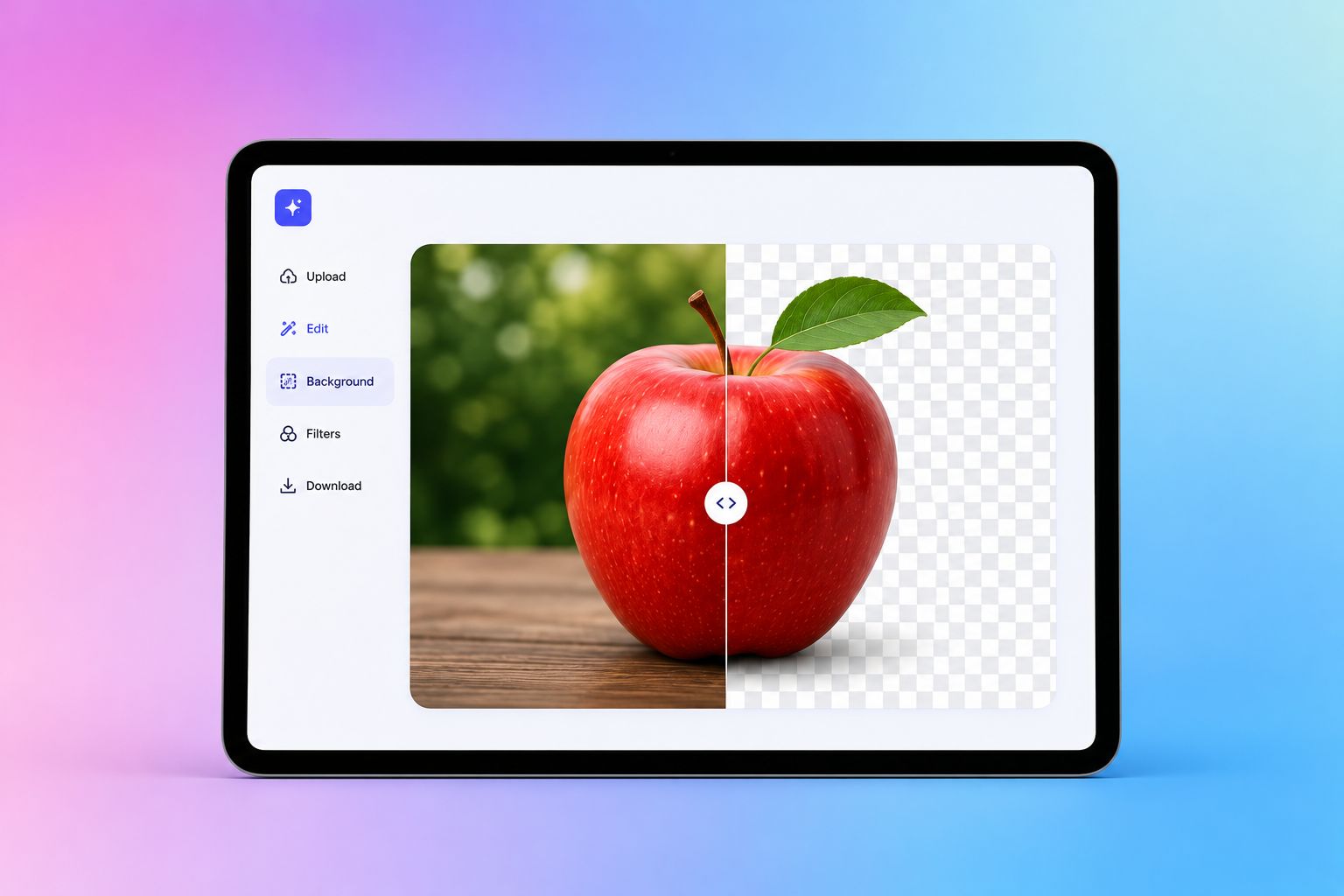
An AI background remover is an AI tool that uses artificial intelligence to find the main subject in an image and separate it from the background.
For example, if you upload a photo of a person standing in front of a wall, the AI can detect the person and remove the wall. What you usually get is a cutout image with a transparent background.
You can then use that cutout by adding it on a new background. People often use this on thumbnails, profile pictures, and other illustrative materials.
Most tools work in a similar way. You upload the image, wait a few seconds, check the result, and download the edited file.
Why Use an AI Tool for Removing Background From Image Files?
Manual background removal can take time with image editing software, especially if the photo has hair, shadows, small details, or a busy background.
AI tools make the process a lot faster. They are helpful when you need a quick edit and do not want to use complex software like Photoshop.
You might use an AI background remover when you want to:
- Make a product photo look cleaner
- Create a profile image
- Remove a messy room from a photo
- Make a transparent PNG
- Add a new background
- Create a thumbnail
- Design a social media post
- Prepare an image for a website
- Make a presentation look cleaner
For simple photos, many AI tools can give a good result in one click. For harder photos, you may still need to clean up the edges manually.
10 AI Tools for Removing Background From Images
Here are 10 tools you can try if you need to remove a background from an image.
1. Canva Background Remover
Canva is a popular design platform used for social media posts, presentations, posters, videos, resumes, and marketing materials. Its background remover lets you remove the background from a photo and continue editing the image inside Canva. This is useful if you want to place the cutout into a design right away. Canva is a good option if you already use it for design work. You can remove a background, add text, add brand colors, choose a template, and export the final design from one place.
Best for:
- Social media posts
- Profile photos
- Marketing designs
- Presentations
- People who already use Canva
The main thing to check is your Canva plan and feature limits. Some AI and export features may depend on your account, plan, or usage limits.
2. Adobe Express Background Remover
Adobe Express offers a free online background remover that can turn photos, product images, and headshots into transparent PNGs.
Adobe is the company behind tools like Photoshop, Illustrator, Premiere Pro, and Acrobat. Adobe Express is its simpler online design tool for everyday users, creators, students, and small teams.
This is a good option if you want an easy tool from a well-known creative software company. You can remove the background and then continue editing the image in Adobe Express.
Best for:
- Headshots
- Product photos
- Transparent PNGs
- Quick design edits
- People who want a simple Adobe tool
Adobe Express is easier than Photoshop, but it still gives you design options after the background is removed.
3. remove.bg
remove.bg is one of the most well-known background remover tools. It is built for one main job: remove image backgrounds quickly.
You upload a photo, and the tool automatically removes the background. You can then download the result or make simple edits.
The company behind remove.bg focuses only on automatic background removal for images and you can use it for photos of people, products, animals, cars, graphics, and other image types.
Best for:
- Fast background removal
- Transparent backgrounds
- Product photos
- Profile photos
People who want a simple one-purpose tool
remove.bg is a good choice if you do not want a full design platform. It is built to do one thing quickly.

4. Photoroom Background Remover
Photoroom is an AI photo editing platform focused heavily on product photos, ecommerce images, and branded visuals
Its background remover can remove the original background and let you keep it transparent, white, colored, or replaced with a new style. Photoroom is useful if you sell products online or need clean images for a shop, marketplace, catalog, or social media page.
Best for:
- Product photos
- Ecommerce images
- Marketplace listings
- Small businesses
- Branded product visuals
Photoroom is more than a basic background remover. It is built around making product images look polished and consistent.
5. Pixelcut Background Remover
Pixelcut offers a free AI background remover that can remove image backgrounds quickly and create clean cutouts.
The company behind Pixelcut focuses on AI photo editing tools for creators, sellers, and small businesses. It also offers tools for product photos, image upscaling, background replacement, and content creation.
Pixelcut is useful if you want quick results with a simple interface. It is also a good option for people who create images for online stores, social media, and ads.
Best for:
- Product photos
- Social media images
- Online sellers
- Fast cutouts
People who want a simple AI editor
Pixelcut is a strong choice if you want more image editing tools beyond only background removal.
6. Pixlr Background Remover
Pixlr is an online photo editor with AI tools. Its background remover automatically detects the subject and removes the background.
Pixlr is useful because it also includes broader photo editing features. After removing the background, you can continue editing the image with other tools. This makes it a good choice if you want a free online editor that can do more than one task.
Best for:
- General photo editing
- Transparent backgrounds
- Social media designs
- Quick image edits
- People who want browser-based editing
Pixlr can be helpful if you do not want to download design software but still want editing control.
7. Fotor Background Remover
Fotor is an online photo editing and design platform with AI tools. Its background remover can remove a background in one click and create a transparent image.
Fotor is useful for people who want simple editing, design templates, photo enhancement, and background changes in one platform.
It can work well for profile images, product photos, marketing images, and social posts.
Best for:
- Profile photos
- Product photos
- Photo editing
- Background changes
- Simple design work
Fotor is a good option if you want a background remover plus other easy photo editing tools.
8. Clipdrop Background Remover
Clipdrop offers AI image tools, including a background remover. It can remove the background from a picture and let you download the result.
Clipdrop is known for AI visual tools such as cleanup, relighting, image generation, and background replacement. It is useful for creative edits, not just simple cutouts.
This can be a good choice if you want to remove a background and then try other AI image tools in the same ecosystem.
Best for:
- Creative image edits
- High-resolution cutouts
- Background replacement
- AI image workflows
- Designers and creators
Clipdrop may be more useful if you want AI editing features beyond basic background removal.
9. Picsart Background Remover
Picsart is a photo and video editing platform with many creative tools. Its background remover uses AI to remove backgrounds from images in seconds.
Picsart is popular with creators because it includes stickers, templates, filters, design tools, and social media editing features.
This is a good option if you want to remove a background and then turn the result into a more creative image.
Best for:
- Social media content
- Creator graphics
- Fun edits
- Posters and thumbnails
- People who want creative tools
Picsart may have more features that you don’t really want right now than a simple background remover, but that can be useful if you want to keep editing later.
10. Erase.bg
Erase.bg is an AI-powered background remover from Pixelbin. It is designed to remove image backgrounds automatically in seconds.
It is used for people, products, ecommerce images, marketing visuals, and other common cutout needs.
Erase.bg is a good option if you want a direct tool that focuses on background removal without needing a full design project.
Best for:
- Quick background removal
- Ecommerce images
- Product photos
- Transparent PNGs
- Simple image cleanup
Erase.bg can be useful when you want a fast result and do not need a complex design editor.

How to Choose the Best AI Background Remover
The best AI tool for removing background from image files depends on what you need to do after the background is gone.
- If you only need a transparent PNG, choose a simple one-purpose tool. These tools are usually faster and easier.
- If you want to create a full design, choose a tool with templates, text, colors, and layout options. This is better for social media posts, ads, thumbnails, and presentations.
- If you are editing product photos, look for tools made for ecommerce. These often include white backgrounds, batch editing, shadows, resizing, and product image templates.
- If the photo has hair, fur, glass, or small details, test more than one tool. Some tools handle tricky edges better than others.
- You should also check download quality. Some free tools may offer lower-resolution downloads for free and charge for HD files.
- Privacy is also important when it comes to online tools. If the image is personal or contains sensitive content, check how the tool stores and processes uploads.
- Finally, check if you need an account. Some tools let you remove one background quickly without signing up, while others require login, credits, or a paid plan.
Tips for Getting Better Background Removal Results
AI tools work best when the photo is clear.
- Use an image where the subject stands out from the background. If the subject and background are the same color, the AI may have trouble.
- Choose a sharp image. Blurry photos can lead to rough edges.
- Use good lighting. Dark or shadowy images can be harder to cut out.
- Avoid busy backgrounds when possible. A simple background is easier for AI to remove.
- Check the edges after the tool finishes. Look closely at hair, hands, clothing, shadows, and small details.
- Use manual erase or restore tools if the app offers these. This can help fix small mistakes.
- Download the file as a PNG if you need a transparent background.
Boost Your Productivity with Summary AI
Although Summary AI does not currently have an AI background remover, it has a large collection of free AI tools that you can use online. Most of these focus on writing, transcription, speech and audio recording or video, subtitles, summaries, converters, compressors, and all sorts of related tasks that can help you with your work, especially with marketing automation.
If you have too many meetings and it is getting difficult to keep up, an AI note taker may be the answer. Summary AI can join your calls, transcribe everything, and generate the best meeting notes that you can share with your team so everyone is on the same page.