






Learning how to unarchive an email makes it easy to bring important messages back when you need them. Archiving emails is an easy way to keep your inbox clean without deleting messages you may need later. But once an email leaves your inbox, it can be hard to find where it went.
If you need to find an old email you archived, you can unarchive it and move it back to your inbox. The steps are slightly different for each email provider, but the process is almost always very simple We’ll take a look at how to unarchive an email in Gmail, Outlook, and Apple Mail.
What does archiving an email mean?
Archiving removes an email from your inbox while keeping it saved in your email account. The message, attachments, and other details remain stored, and you can search for the email whenever you need it.
People often archive emails they no longer need right away but may want to find later, such as receipts and invoices, older client emails, and order updates. If you want to keep these messages safe, your best bet is to either save the emails as PDFs or to keep a folder of summarized emails somewhere safe.
Archiving is different from deleting. Deleted emails are permanently removed after a certain time or when you empty your Trash folder. Archived emails can be retrieved.
How to unarchive an email in Gmail
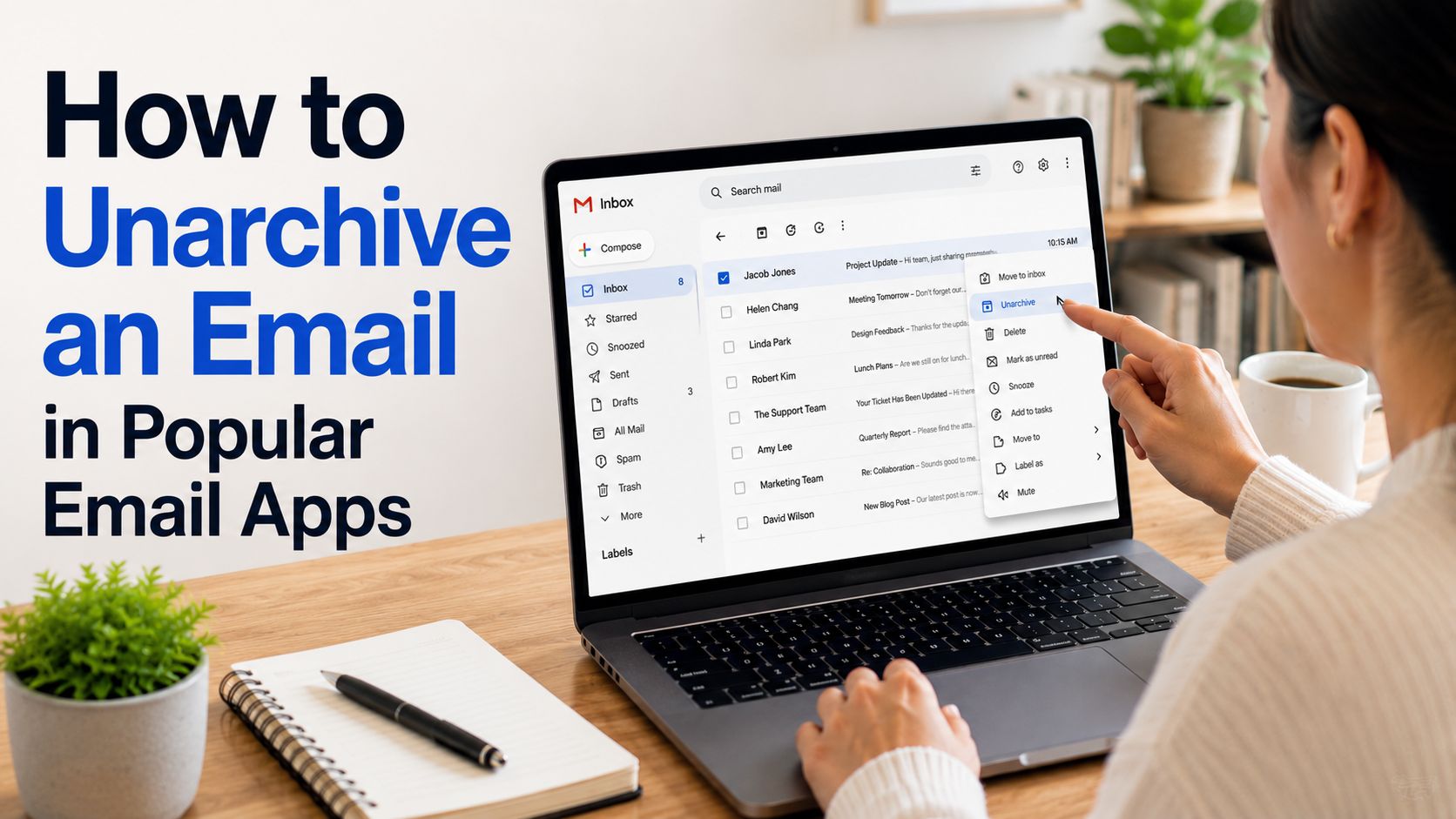
Gmail does not have a separate Archive folder. Instead, archived emails are stored in the All Mail section. To unarchive an email, find it there and move it back to your inbox.
To unarchive an email on Gmail desktop:
- Open Gmail.
- Click More in the left sidebar if you do not see All Mail.
- Select All Mail.
- Find the archived email you want to restore.
- Open or select the message.
- Click Move to Inbox.
The email will now appear in your inbox again.
You can also use Gmail search with search operators to refine searches so you can find archived messages faster. Try these search terms:
- “in:all” to search all messages, including archived emails
- “-in:inbox” to find messages that are not currently in your inbox
- A sender’s name, subject line, or keyword to narrow the results
To unarchive an email in the Gmail app:
- Open the Gmail app on your iPhone, iPad, or Android device.
- Use the search bar to find the archived email.
- Open the message.
- Tap the three-dot menu in the top-right corner.
- Select Move to Inbox.
Your email will go back to your inbox.
Gmail automatically moves an archived conversation back to your inbox when someone replies to it. When you move an archived email back to your inbox, it syncs across all of your device as you would expect.

How to unarchive an email in Outlook
Outlook usually stores archived emails in a folder called Archive. You can move a message from that folder back to your inbox at any time.
On Outlook desktop:
- Open Outlook.
- Find and open the Archive folder in the left sidebar.
- Select the email you want to unarchive.
- Click Move to.
- Choose Inbox.
You can also drag the email from the Archive folder into your Inbox.
On the Outlook mobile app:
- Open the Outlook app.
- Tap the menu icon.
- Select Archive.
- Press and hold the email you want to move.
- Tap Move to Folder.
- Select Inbox.
The email should return to your inbox right away.

How to unarchive an email in Apple Mail
Apple Mail stores archived emails in an Archive mailbox. You can move any message from that mailbox back into your inbox.
- Open the Mail app.
- In the sidebar, select Archive.
- Choose the email you want to unarchive.
- Click Message in the top menu.
- Select Move to.
- Choose Inbox.
Depending on your email account settings, you may see Move to Folder instead of Archive.
How to find archived emails
If you are not sure where an archived email is, search is usually the fastest option. Search using details you remember, such as:
- The sender’s name or email address
- Words from the subject line
- A word or phrase from the email
- Name of the attached file
- A date or date range
In Gmail, search across All Mail. In Outlook, make sure your search includes All Mailboxes. In Apple Mail, adjust your search filters to include archived messages.
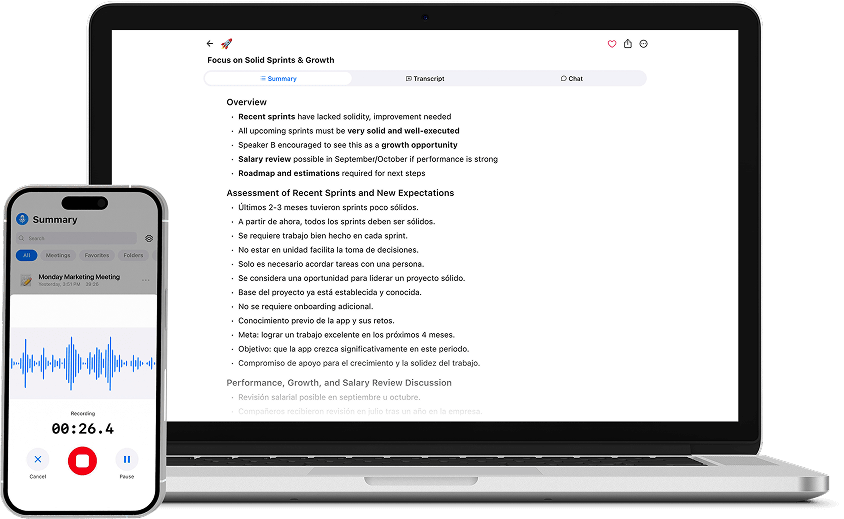
Summarize your meetings with Summary AI
Learning how to unarchive an email helps you keep your inbox organized without losing access to important messages. In Gmail, Outlook, and Apple Mail, archived emails stay safely stored until you are ready to find them and you can always restore them. Use search, folders, and labels to locate old conversations faster.
While Summary AI does not manage your email, it can help you stay organized in another important part of your workday: meetings. Summary AI has a Google Meet Transcription integration that allows you to record, transcribe, and summarize your meetings, so you can quickly review key points, decisions, and next steps without digging through notes or relying on memory.