




The best Android shortcuts can save you time when doing everyday tasks on your phone. They can help you open apps, change settings, switch between apps, type faster, launch the camera, and avoid going through the same menus over and over.
For example, you can press and hold an app icon to see quick actions, use Quick Settings to control common features, add websites to your home screen, and use Gboard shortcuts to make typing and editing easier.
The shortcuts that are available to you depend on the Android version you are using, as well as the phone brand, and the apps you use. Still, most Android phones include plenty of useful shortcuts.
Here are 20 of the best Android shortcuts worth knowing.
Do Android phones have shortcuts?
Android phones have different kinds of shortcuts. These include app shortcuts, widgets, Quick Settings buttons, home screen links, gestures, keyboard controls, and simple automation tools.
A shortcut helps you do normal tasks on your phone faster. For example, instead of opening Gmail and then tapping the button to write an email, you can press and hold the Gmail icon and choose the option to write a new email right away. Google Keep and many other apps have shortcuts like this too.
You can also add apps, shortcuts, and widgets to your home screen. Widgets can be useful because they show most of the information you need without making you open the app first.
Can you create shortcuts on Android?
An easy way to create shortcuts on Android is to press and hold an app icon. If the app has shortcuts, a small list of actions will appear. You can tap one to use it, or press and hold it and move it to your home screen.
You can also make shortcuts for websites, contacts, files, folders, and some phone settings. If your phone does not have the shortcut you want, you can try using a shortcut app to make a direct link to a file, setting, or part of your phone.
In case you are looking for ways to create shortcuts for an Android app as a developer, Android’s official sources can help you.
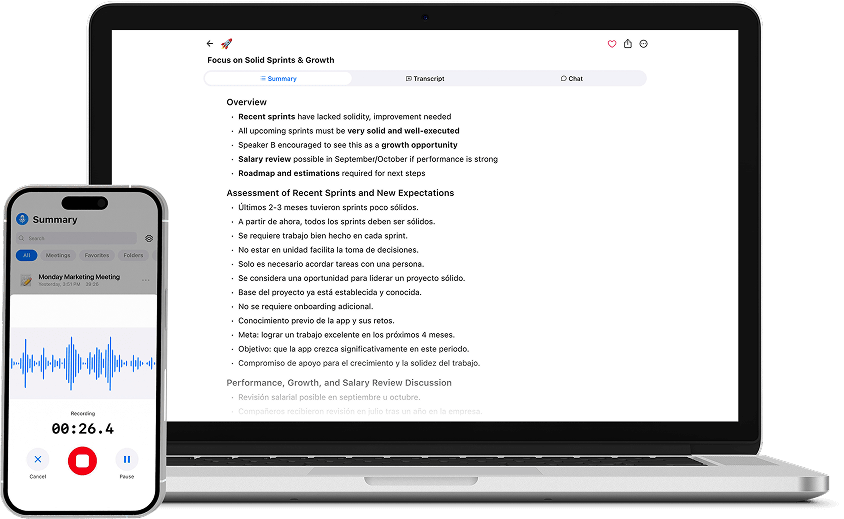
Want to spend less time writing meeting notes? Summary AI’s AI note taker records calls and turns them into searchable summaries, key points, and action items.
What are Android shortcuts?
An Android shortcut is a quick way to open an app, setting, website, file, contact, or feature. Instead of opening an app and going through several screens, you can use a shortcut to get where you need faster.
For example, you can add a client portal, shared document, important contact, or folder where you keep important documents to your home screen. A single shortcut may only save a few seconds of your time, but if you use it many times a day, the time you save can add up.
Top 20 Android shortcuts you should know

Next, let’s take a look at a few of the most popular and most useful Android shortcuts out there.
1. Double-press the power button to open the camera
On many Android phones, pressing the power button twice will open the camera. This is useful when you want to take a photo quickly without unlocking your phone and looking for the camera app.
If this does not work on your phone, open Settings and search for words like “camera,” “quick launch,” or “gestures.” You may need to turn the feature on first.
2. Open Quick Settings
Swipe down from the top of the screen to see your notifications and some common controls. Swipe down again to open the full Quick Settings panel.
From here, you can quickly control features such as Wi-Fi, Bluetooth, the flashlight, airplane mode, battery saver, screen recording, and Do Not Disturb. If you press and hold one of these buttons, it will usually open the full settings page for that feature.
It is also a good idea to move the buttons you use most to the first page. That way, you do not have to keep swiping around to find them.
3. Long-press app icons
Press and hold an app icon on your home screen or in the app drawer. Many apps will show a small menu with useful actions.
For example, an email app may let you start a new email, while a notes app may let you create a new note. A browser may give you the option to open a new tab. These shortcuts help you get to a feature without opening the app first.
You can often press and hold one of these actions and drag it onto your home screen to create its own shortcut.
4. Swipe the gesture bar to switch apps
If your phone uses gesture navigation, swipe left or right across the bar at the bottom of the screen to move between apps you recently used.
This is useful when you need to keep switching between two apps. For example, you may be copying information from Chrome into a message, checking your calendar while writing an email, or moving information into your notes. Swiping across the bottom is often faster than opening Recent Apps each time.
5. Use split-screen mode
Split-screen mode lets you use two apps on the screen at the same time. Open Recent Apps, tap the app icon above one of the previews, and choose Split screen if you see the option. Then choose another app for the other half of the screen.
For example, you could keep Chrome open while taking notes in Google Docs, or watch a video while following instructions in another app.
The steps may be a little different depending on your Android phone, and some apps do not support split-screen mode.
6. Move the cursor with Gboard’s spacebar
Putting the text cursor in the exact place you want with your finger can be difficult. Gboard gives you an easier option.
Place your finger on the spacebar and slide it left or right. The cursor will move in the same direction through your text. This makes it easier to fix spelling mistakes or edit part of a sentence.
It is especially useful when writing longer messages, notes, or emails.
7. Double-tap Shift for Caps Lock
Double-tap the Shift key in Gboard to turn on Caps Lock. You can then type several capital letters without pressing Shift every time.
Tap Shift again to turn Caps Lock off. This is useful when typing acronyms, headings, or anything else that needs several capital letters in a row.
8. Swipe from Backspace to delete text quickly
If you want to delete several words, you do not need to keep tapping Backspace.
Place your finger on the Backspace key in Gboard and swipe to the left. As you move your finger, more text will be selected. Let go, and the selected text will be deleted.
It may take a little practice, but it can make deleting sentences or phrases much faster.
9. Add a website shortcut to your home screen
If you visit the same website often, you can add a link to it on your home screen.
Open the website in Chrome, tap the three-dot menu, and choose Add to Home screen. You can change the shortcut name if you want, then tap Add.
The website will appear on your home screen much like an app. This can be useful for websites you use often.
10. Manage Chrome tabs faster
It is easy to end up with many tabs open in Chrome, which can make it harder to find the page you need.
On supported versions of Chrome, you can swipe across the address bar to move between open tabs. You can also tap the tab counter to see all your tabs in one place.
Closing tabs you no longer need can make important pages easier to find and keep your browser less cluttered.
11. Add useful widgets
Widgets show useful information on your home screen without making you open an app first. Common examples include calendars, weather, clocks, tasks, notes, music controls, battery information, and screen-time data.
Some widgets also give you quick access to other features. For example, tapping a clock widget may take you straight to your alarms or timers.
To add a widget, press and hold an empty space on your home screen, tap Widgets, choose the one you want, and drag it into place.
12. Add shortcuts for contacts
Many Android phones let you add shortcuts for people you contact often. Depending on your phone and apps, you may be able to call, text, or video-call that person with one tap.
13. Search Android Settings
You do not have to remember where every option is inside Android Settings. It is often faster to use the search box.
Open Settings and search for terms like “battery,” “keyboard,” “permissions,” “hotspot,” “screen recorder,” “notifications,” or “default apps.” Android will usually take you to the right section.
This can save time compared with opening several menus and trying to remember where a setting is.
14. Set up a Do Not Disturb shortcut
Notifications can make it harder to focus. One message can lead you into another app and take your attention away from what you were doing.
Adding Do Not Disturb to Quick Settings gives you a fast way to block most notifications. You can use it while working, studying, sleeping, or sitting in a meeting.
You can also schedule Do Not Disturb to turn on automatically at certain times or during calendar events. If needed, you can allow exceptions for alarms, important contacts, or certain apps.
15. Use voice typing in Gboard
Tap the microphone icon in Gboard to do voice-to-text instead of typing. Your phone will turn your speech into text.
This can be useful for when you want to write messages, quick notes, do searches, and create rough drafts without typing.
Always check the text you dictate before sending it, especially if it includes info like names, dates, numbers, or work information. Voice typing can sometimes get these words wrong.
Remember, you can also send voicemail on Android.
16. Pin important conversations
Messaging apps can become crowded, and important chats can quickly move down the list when new messages arrive.
Many apps let you pin certain conversations to the top so they are easier to find. You might pin an important work chat, a family conversation, or a group you check often.
Some Android phones also support conversation widgets, which let you place certain chats directly on your home screen.
17. Take a screenshot quickly
On most Android phones, pressing the Power and Volume Down buttons at the same time will take a screenshot.
Some phones also offer other methods, such as a three-finger gesture, a Quick Settings button, or a screenshot option in Recent Apps.
If the screenshot includes a lot of extra information, crop it so the important part is easier to find.
18. Create shortcuts for files and folders
If you open the same file or folder often, you may be able to add a shortcut to it on your home screen.
This saves you from opening your file manager and searching for the same thing each time.
Your phone’s file manager may already support this. If it does not, a shortcut creator app may let you make links to files, folders, settings, and some screens inside other apps.
19. Set up Android automation apps
Automation apps can perform simple actions for you when something happens on your phone.
An action can be started by the time of day, your location, the Wi-Fi network you connect to, your battery level, or another event. Tasker, MacroDroid, and IFTTT are common examples.
For example, you could turn on Do Not Disturb automatically when you connect to your work Wi-Fi, silence your phone during a regular meeting, or open an app when you connect your headphones.
20. Use Google Assistant or Gemini
Google Assistant and Gemini can help you perform simple tasks without opening an app yourself.
You can use voice commands to set timers, make calls, send messages, create reminders, get directions, or control some smart-home devices.
For example, instead of opening the Clock app and setting a timer by hand, you can simply ask for a 10-minute timer. Short, clear commands usually work best.
You can also explore another AI assistant or other free AI apps if you want more functions.

How to create Android shortcuts
The steps are a little different depending on the type of shortcut you want to make.
Here are three common ways to do it.
Add a shortcut for an app action
- Press and hold the app icon.
- Check the list of available actions.
- Press and hold the action you want to use.
- Drag it to an empty spot on your home screen.
The action will now appear as its own shortcut on your home screen.
Add a website shortcut
- Open Chrome.
- Visit the website you want to save.
- Tap the three-dot menu.
- Select Add to Home screen.
- Change the name if you want.
- Tap Add.
The website will appear on your home screen, so you can open it with one tap.
Add a widget
- Press and hold an empty area of your home screen.
- Tap Widgets.
- Find the app that has the widget you want.
- Press and hold the widget.
- Drag it to the place you want on your home screen.
Some widgets can also be made larger or smaller after you add them.
Take a shortcut with Summary AI
Android shortcuts can make everyday tasks quicker by cutting out taps and menus you do not need. Meetings and calls are another part of the day where small improvements can save time. Summary AI’s AI note taker records conversations and turns them into summaries, key points, and action items. This means you can focus more on what people are saying instead of trying to listen and write detailed notes at the same time.