

The best dictation software turns what you say into text, so you can get your thoughts down without typing everything by hand. Some devices have their own dictation features built in, but separate apps also exist that allow you to dictate text.
The right dictation software for you depends on how you plan to use it. A writer may want a simple dictation tool that works smoothly for creating drafts. Your team may care more about meeting transcripts and notes you can share at work. People in fields like healthcare or law may need software that can handle specialized terminology and stricter privacy requirements. And finally, a student may be looking for a free dictation app to use during lessons.
What is dictation software?
Dictation software, also called speech-to-text software, listens to and turns what you say into written text. You can use it to write or even to transcribe recorded audio into text.
The way these tools work is usually pretty straightforward. You click where you want to type, start speaking, and the words appear on the screen.
Newer dictation tools use AI transcription, and they can also clean up what you say. For example, they may remove filler words, make sentences easier to read, or even create a summary from a longer recording.
Features to look for in dictation software
Before choosing a dictation tool, check the main features first.
- Accuracy: The software should understand you without making too many mistakes. This is especially important for people with accents.
- Device support: Make sure it works on the device and browser you use.
- App support: Some tools only work inside their own app, while others let you dictate directly to documents, emails, and more.
- Voice commands: Features for adding punctuation, starting new paragraphs, or deleting words can make dictation easier.
- Languages: Check which languages the tool supports, especially if you work in more than one language.
- Privacy: Find out how your recordings and transcripts are stored, especially if you work with private information.
- Price: Free plans may have limits regarding recording time or access to certain features.
- Microphone quality: Clear audio helps improve accuracy. A good microphone and a quiet room can make a noticeable difference.
Best dictation software list
Here are some of the best dictation software options for different needs. Some are better for quick speech-to-text, while others are made for longer recordings, meetings, or specific workplace scenarios.
1. Summary AI’s Speech-to-Text tool
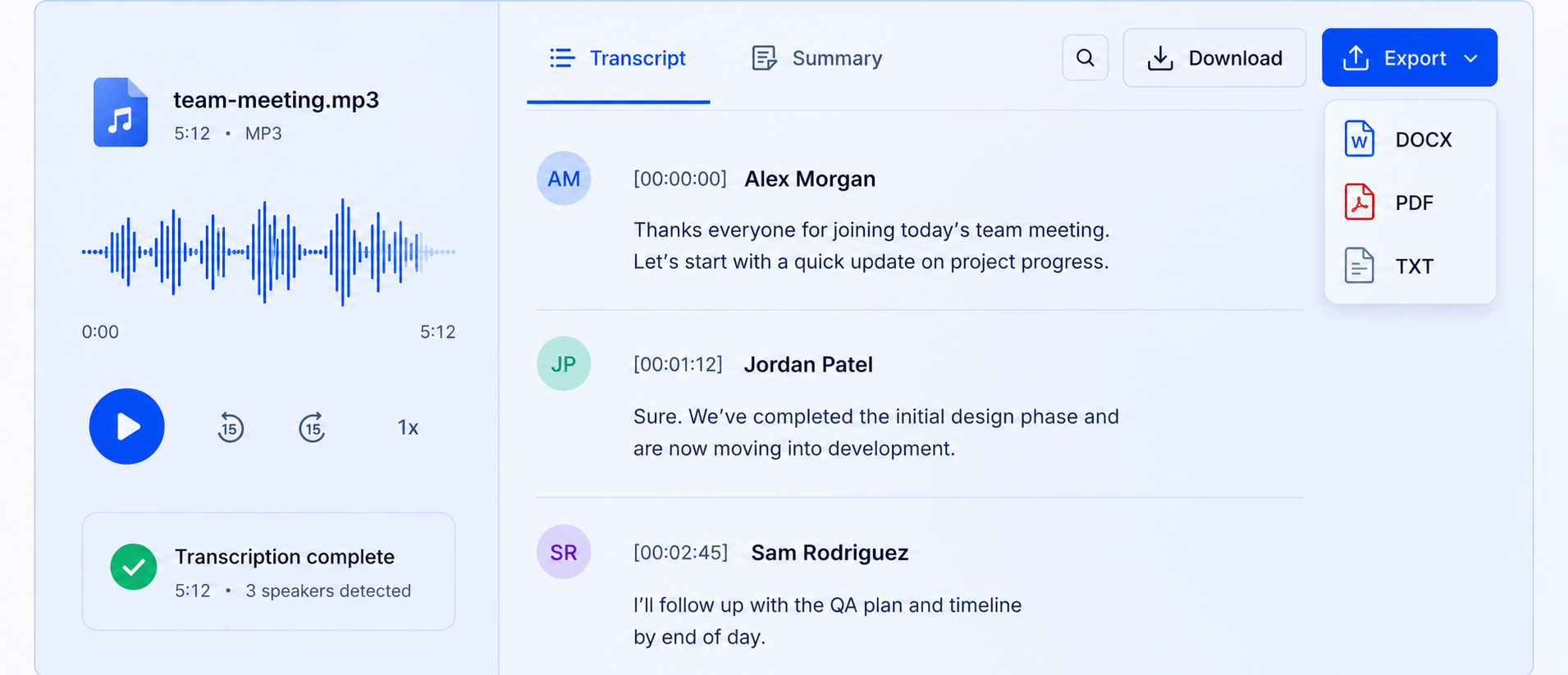
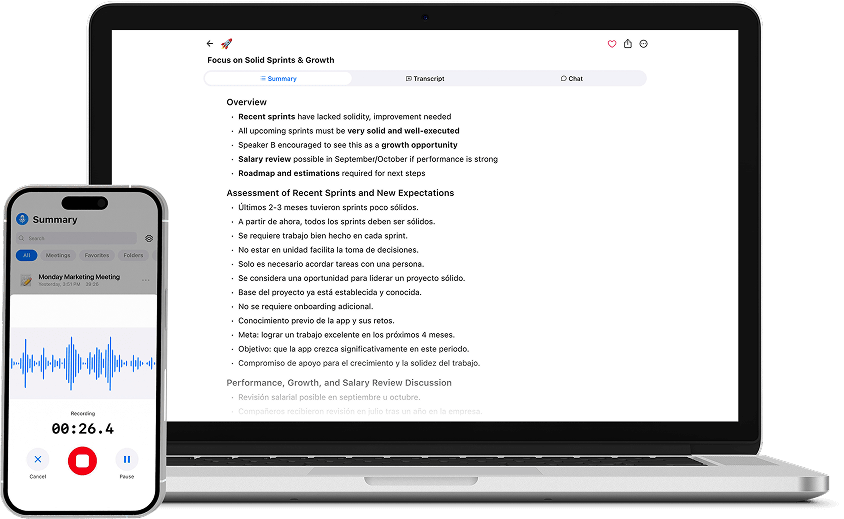
Summary AI’s Speech-to-Text tool is an easy-to-use option for turning recorded audio into text. It is most useful when you want to read and review a text instead of listening to a recording again.
Summary AI is also helpful in other situations. It is an AI transcription tool that can join your meetings and transcribe your calls. After the transcription is finished, you can use the text to create a summary, extract the key points, and turn it into notes you can share with your team.
Best features
- Turns spoken audio into written text
- Works well with longer recordings
- Helps you create summaries and notes
- Runs in your browser
- Does not require extra software
Limitations
This specific tool is mainly designed for turning audio into text. For more features, you will need to check out Summary AI’s other tools.
Price
The Speech-to-Text tool is free.
2. Dragon Professional
Dragon Professional works on Windows and gives people more ways to work by voice than the dictation tools that come with a computer. You can teach it words you use, give commands by voice, and fix or lay out text as you speak.
It can work well for people who spend a lot of time writing up records, reports, or case notes. Doctors, lawyers, and other people who work with set terms may also look at it. If you deal with private information, check how the software handles data and whether it fits the rules you have to follow.
Best features
- Dictation on Windows
- A way to add your own words
- Voice commands
- Tools for writing
- Support across many desktop apps
Limitations
Dragon Professional only runs on Windows, so Mac users will need to look elsewhere. It also costs more than many dictation tools.
Price
You need to get in touch with sales or a reseller to find out the price.
3. Wispr Flow
Wispr Flow lets you speak and have your words show up in the app you are using. You can use it across different apps.
It can also clean up what you say as it turns your speech into text. This can help people who would rather speak than type, or writers who want to talk through an idea and turn it into a draft.
Best features
- Dictation across supported apps
- AI that cleans up and lays out text
- Support for Mac, Windows, and iPhone
- A way to add words you use often
- A free plan
Limitations
Wispr Flow is built more for speaking into apps as you work. It does not put as much focus on recorded meetings, shared transcripts, or team notes as Otter or Summary AI.
Price
Wispr Flow has a free Basic plan. Pro costs $15 per user per month.
4. SpeechPulse
SpeechPulse runs on Windows and turns speech into text on your computer. It may suit people who want to keep more of their work on their own device instead of sending everything through the cloud.
You can use it to write into documents, notes, and other text fields. It also gives you ways to work with speech and recordings without always going online.
Best features
- Dictation on Windows
- Speech-to-text in desktop apps
- Ways to work without the cloud
- Dictation and transcription
- Support for writing on a PC
Limitations
It may take more time to set up than the dictation tools that come with Apple, Microsoft, or Google products.
Price
SpeechPulse costs $99 as a one-time purchase. (Not a subscription.)
5. Otter.ai
Otter.ai focuses more on turning meetings and other conversations into text than on letting you dictate text.
It can write down speech as people talk and then sum up what was said. Teams can also go back through transcripts and share notes after a meeting.
Best features
- Transcription as people speak
- Meeting summaries
- Transcripts you can search through
- A way to tell speakers apart
- Tools for sharing notes with a team
Limitations
Otter.ai is not made for dictation, but for meeting transcription. The free plan also puts a cap on how much you can transcribe.
Price
Otter.ai has a free Basic plan. Pro starts at $16.99 per user per month.
6. Speechify
Speechify is known for text-to-speech, i.e. reading text out loud, but it also lets you do dictation. If you mainly want to dictate, though, a tool built around voice typing may be easier to work with.
Best features
- Voice typing
- Text read out loud
- Access across devices
- A range of AI voices
- Tools for reading and writing
Limitations
Speechify is mainly for reading text out loud rather than dictation.
Price
Speechify has a free plan. Premium starts at $29 per month, and you can also pay by the year.
7. Spokenly
Spokenly is dictation software that lets you dictate in supported apps on Mac, Windows, and iPhone. It gives people another way to dictate without using only the tools that come with their device.
It can also run transcription models on your device, and you can bring your own API key. That gives you more say over how your speech gets turned into text.
Best features
- Dictation across supported apps
- Support for Mac, Windows, and iPhone
- Transcription that can run on your device
- Support for more than 100 languages
- A free plan
Limitations
Some cloud features only available with a paid plan or your own API key. It may also take more steps to set up than Apple Dictation or Google Docs Voice Typing.
Price
Spokenly has a free plan. Pro costs $9.99 per user per month.
8. Apple Dictation
Apple Dictation comes with Mac, iPhone, and iPad. You can use it in many places where you would normally type.
It gives Apple users a way to speak text in without putting another app on their device. Apple also has Voice Control, which lets you move around the screen and change text by voice.
Best features
- Dictation built into Apple devices
- Support across many apps
- No extra subscription
- Setup that takes little time
Limitations
Apple Dictation gives you fewer ways to set things up than Dragon Professional. It may also fall short if you dictate for long periods or use many terms from one field.
Price
Apple Dictation comes at no extra cost on supported Apple devices.
9. Microsoft Dictation
Microsoft Dictation comes with supported Microsoft 365 apps. Put the cursor where you want the text to go, choose Dictate, and start speaking.
It works inside apps such as Word, so people who already use Microsoft 365 do not have to bring in another dictation tool. You can use it to talk through drafts and get text down while you work.
Best features
- Dictation inside supported Microsoft 365 apps
- Support in Word
- Voice commands and punctuation
- A way to speak text into your work
- Access on several Microsoft platforms
Limitations
What you can use depends on your Microsoft 365 plan, app version, and device. It also gives you fewer ways to set it up around your own needs than a tool like Dragon Professional, for example.
Price
Microsoft Dictation comes with Microsoft 365 plans and Office apps that support it.
10. Google Docs Voice Typing
Google Docs Voice Typing lets you speak straight into a Google Docs file through your browser. You can use it without paying for another dictation tool.
According to Google Support, it also lets you use voice commands to change and lay out text in English. This can help when you want to talk through a draft instead of typing it out.
Best features
- Voice typing in Google Docs
- Support in browsers that work with the feature
- Voice commands for changing text
- Support for many languages
- No extra cost
Limitations
Google Docs Voice Typing only works in Google Docs and Google Slides speaker notes.
Price
Google Docs Voice Typing is free.

Final thoughts
The best dictation software depends on how you want to use your voice. Some tools help you speak straight into apps, while others work better for turning recordings into text or going back over meetings and notes.
Try a few options and see which one fits the way you work. The right tool should help you get words down faster and cut back on the time you spend typing.
If a speech-to-text tool doesn’t cut it and you want more accurate dictation during meetings, try an AI transcription tool like Summary AI.