



Connecting AirPods is usually quick and easy, but the steps can change depending on the device you are using. In this guide, you will learn how to connect AirPods to iPhone, iPad, Mac, Windows laptops, Android phones, and other Bluetooth devices in a few simple steps. Once you know the basics, you can fix most connection issues and pair your AirPods with any device that is compatible.
How to connect your AirPods for the first time
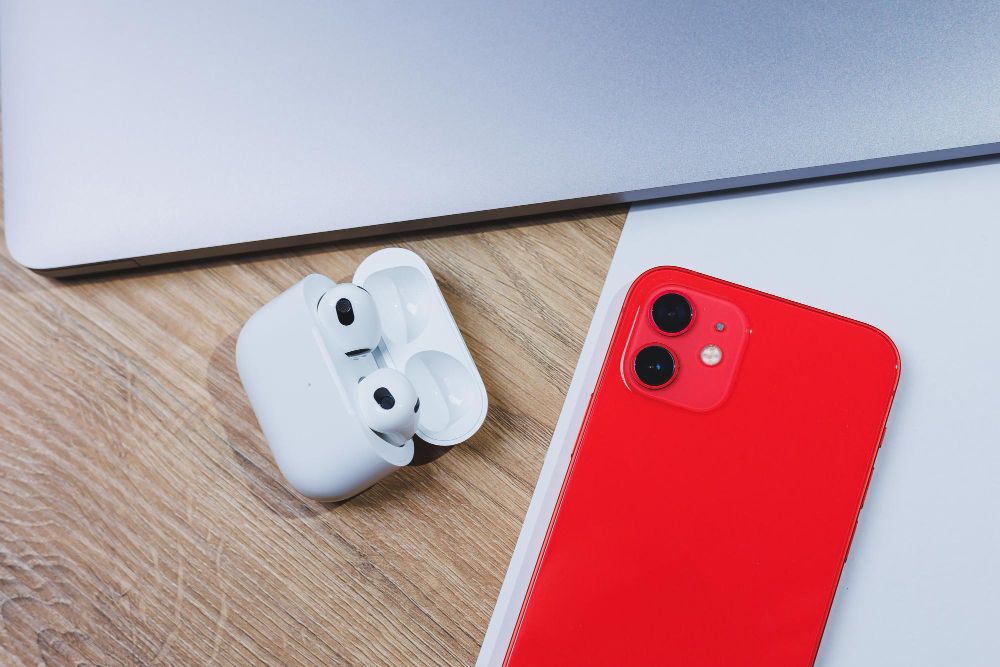
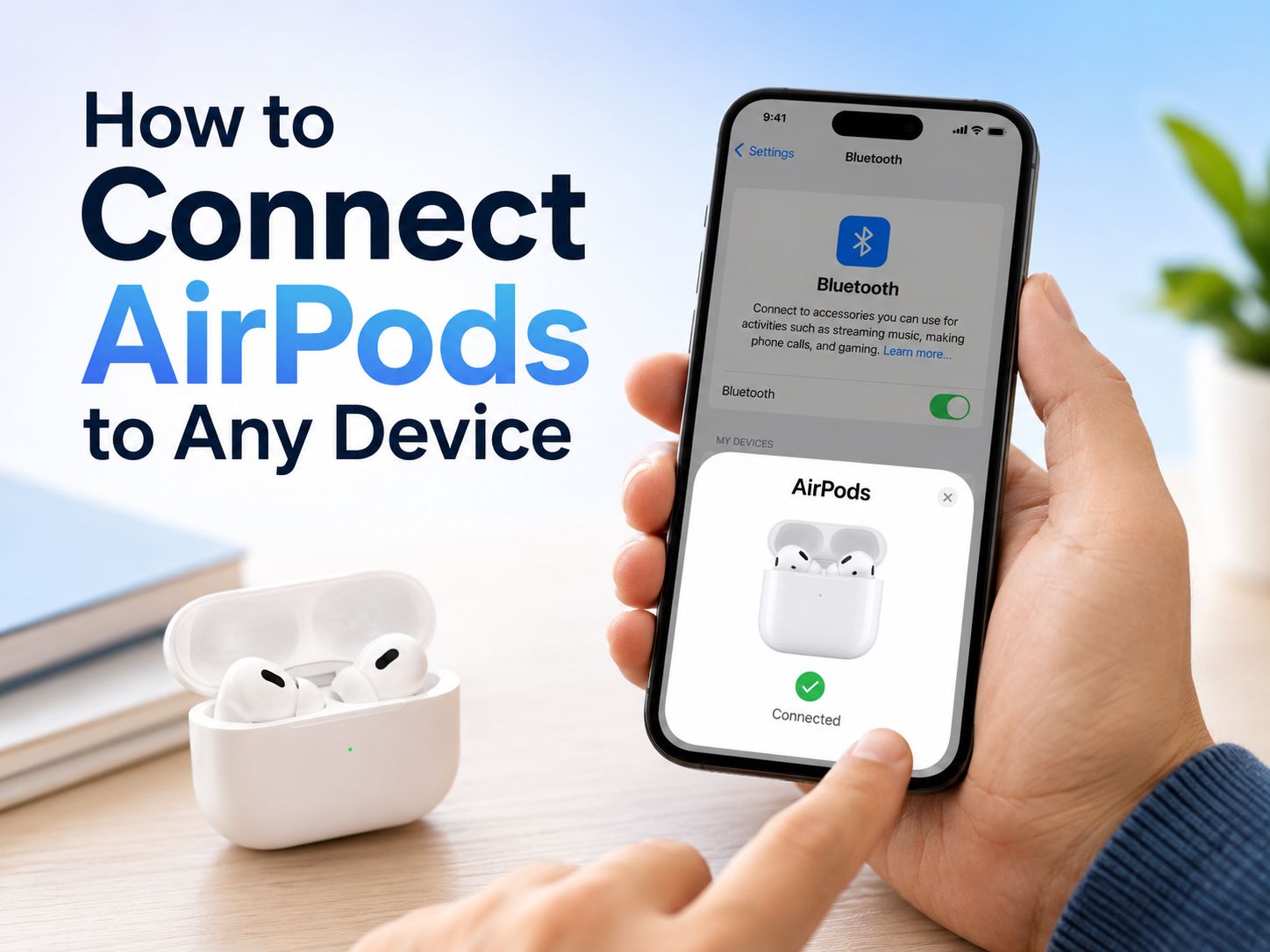
Open the AirPods case near your iPhone with Bluetooth turned on, then tap Connect when the setup animation appears. Follow any on-screen prompts, then tap Done once pairing is complete. If the popup doesn’t appear, you can pair them manually from Bluetooth settings by opening the case and holding the setup button until the light flashes white.
How to connect AirPods to iPhone and iPad
To pair iPhone and iPad with AirPods you have to make sure Bluetooth is on and your device is unlocked before you start.
Follow these steps to connect AirPods to iPhone or iPad:
- Put your AirPods in the charging case and close the lid.
- Hold your AirPods case near your unlocked iPhone or iPad and open the lid.
- A setup animation should appear on the screen with a Connect button.
- Tap Connect, then follow any extra prompts.
- After this first setup, your AirPods will auto‑connect to that iPhone or iPad whenever you open the case nearby with Bluetooth turned on.
- If the pop‑up does not appear, open Settings, go to Bluetooth, find your AirPods under “Other Devices,” and tap their name to pair manually.
If your AirPods keep disconnecting or do not show up, check out a detailed guide on how to reset AirPods for step‑by‑step instructions and tips for troubleshooting.
Having issues with your devices not connecting during meetings is the worst and it can really pull you out of the moment. If you spend the first part of your meetings troubleshooting technical issues, you may not catch all the important things your colleagues are saying. An AI Note Taker from Summary AI can help you by joining your call, transcribing your meeting, and generating the perfect summary which you can use for follow‑ups or to share with your team. Summary AI integrates with your favorite video meeting platforms, including Meets, Teams, and Zoom.
How to connect AirPods to Mac
You can also connect AirPods to a Mac so you can listen to music, watch videos, or take calls on your computer. The process uses regular Bluetooth pairing but is still simple.
To connect AirPods to Mac:
- On your Mac, open System Settings and click Bluetooth.
- Make sure Bluetooth is turned on.
- Put your AirPods in the case, open the lid, and hold the case close to your Mac.
- Look for your AirPods under “Nearby Devices” and click Connect next to their name.
If you have already paired your AirPods with your iPhone using the same Apple ID, they may appear in the Bluetooth list automatically. If that is the case, you can switch to them by clicking the Bluetooth icon in the menu bar or choosing them as the output device in Sound settings.
If the connection fails or your Mac does not see the AirPods, try putting them back in the case, closing the lid for 10 seconds, then opening it again and repeating the steps. If that still does not work, a full AirPod reset often fixes pairing issues.
How to connect AirPods to Windows
AirPods work with Windows laptops and desktop PCs as standard Bluetooth headphones. You will not get all of the features that are only available on Apple devices, but you can still use your AirPods with WIndows to listen to audio and use the built‑in microphones.
To connect AirPods to Windows 11:
- Click the Start button and open Settings.
- Go to Bluetooth & devices and make sure Bluetooth is turned on.
- Put your AirPods in the case, open the lid, and press and hold the button on the back of the case until the status light flashes white. This means the AirPods are in pairing mode.
- In Windows, click Add device, choose Bluetooth, and select your AirPods from the list.
For Windows 10, the method for pairing your AirPods with Windows is similar. If your PC cannot find the AirPods you should move them closer and make sure the case lid stays open while the light is flashing. Another thing to check is whether there is another device currently connected to them. If that is case, unpair and repeat the steps to connect.
How to connect AirPods to Android devices
Even though AirPods are made by Apple, they can connect to Android phones and tablets like any other Bluetooth earbud. Similarly to using AirPods with Windows some features will be limited, but you can still play sound and use basic controls such as play and pause.
To connect AirPods to Android:
- On your Android device, swipe down from the top of the screen and make sure Bluetooth is turned on.
- Put your AirPods in the case and open the lid.
- Press and hold the setup button on the back of the case until the status light flashes white.
- On your phone or tablet, go to Settings > Bluetooth and look under “Available devices.”
- Tap your AirPods to pair and confirm the connection.
On some Android versions, you may see a message asking you to allow access to contacts or audio. You should accept so calls and media work properly. If trying to connect fails, turn Bluetooth off and on again and repeat the steps, or reset your AirPods before trying one more time.

Connect AirPods to other Bluetooth devices
AirPods can also connect to many other devices through Bluetooth, such as game consoles with adapters, smart TVs, and streaming devices.
Connecting AirPods with these devices is always the same: you put AirPods into pairing mode, then you select them from the Bluetooth list on the device.
Some devices, like certain consoles, may need a Bluetooth audio adapter plugged into the controller or the console. In those cases, you should follow the instructions of the adapter for pairing and use your AirPods as you would with any Bluetooth headset.
During these steps, if your devices keep failing to detect each other, it can help to check the official support pages of Apple that explain manual setup and troubleshooting in more detail, especially for non‑Apple devices.
How to connect AirPods without a button
Although there is no button on the case, don’t worry, you can connect even newer AirPods to your devices all the same. These models use the light on the front of the case instead of a physical button on the back.
- Put both AirPods in the charging case and close the lid.
- Bring the case close to the device you want to use.
- Open the lid and look at the small status light on the front of the case.
- Gently double-tap the front of the case near the light. The light should start flashing white. This means the AirPods are in pairing mode and ready to connect.
- On your device, open Settings and go to Bluetooth, then turn Bluetooth on.
- Find your AirPods in the list of devices and tap or click them to connect.
After you connect once, your AirPods should automatically connect to your other Apple devices that use the same Apple account.

Common connection problems and how to fix them
Even when you follow all the steps to connect, your AirPods may sometimes refuse to pair or the connection may keep cutting off. Most of these issues can be fixed by checking a few things.
Here are simple ways to fix common AirPods connection problems:
- Turn Bluetooth off and back on again on your device.
- Put both AirPods in the case, close the lid for 10 to 15 seconds, then open the lid and try again.
- Make sure your AirPods and device both have enough power.
- Check that your AirPods are not already connected to another device.
- Keep your AirPods and device close together while pairing.
Record your meetings with Summary AI
Meetings where tech gets in the way can be frustrating, especially when audio issues or connection problems make you miss key points in the conversation. If you are worried about losing important details while you sort out your AirPods or other devices, an AI Note Taker from Summary AI can join your call, transcribe the discussion, and create perfect summaries with key points for follow‑ups and sharing with your team. Summary AI works with popular platforms like Meets, Teams, and Zoom, so you can focus on the meeting while it handles the notes.