


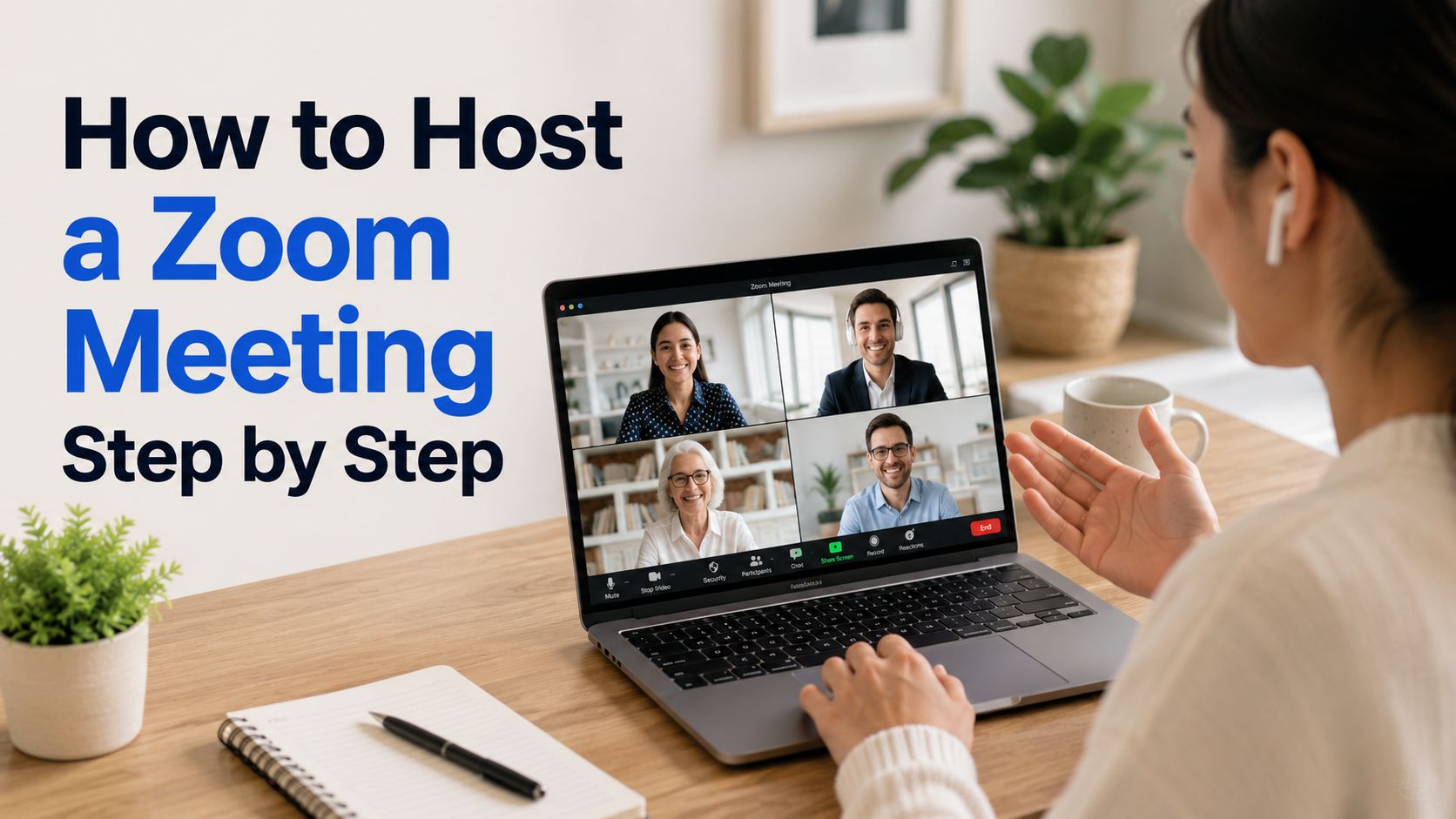

To host a Zoom meeting smoothly, you need to set up your Zoom account, start or schedule the meeting, invite participants, and use the host controls to manage audio, video, and screen sharing. This guide walks you through each step of how to host a Zoom Meeting explained as simply as possible so you can run professional Zoom calls, even if you’re a beginner.
Intro to the Basics of Hosting a Zoom Meeting
When you host a Zoom meeting it means you are the person who creates, starts, and controls the call. As the host, you are the one who decides when the meeting begins, gives permission for who can join, and sets up which features are available during the session.

As the host you can:
- Start and end the meeting.
- Admit participants and manage the waiting room.
- Control key features that participants have access to like mute, video, screen share, chat, and recording.
If you want to learn how to use Zoom, you should dig deeper into Zoom’s settings of the host role as well as other types of roles that can take part in a meeting. To get a good intro, you can check the official guide on Zoom’s support site.
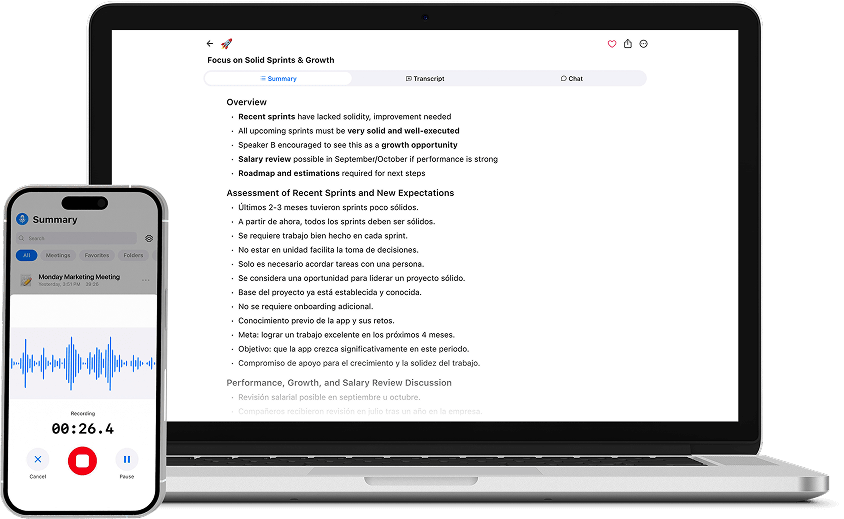
For people who have many meetings, an AI Note Taker like Summary AI can save dozens of hours each week. It has a Zoom Meet recorder integration that joins your calls, transcribes everything with AI, then makes a summary you can share with your colleagues or use for internal records.
How to Host a Zoom Meeting
Hosting a Zoom meeting is simple and only takes a few steps. This section explains how to start a Zoom meeting, manage participants, and what basic meeting controls you have at your disposal.
Step 1: Set Up Your Zoom Account to Host Meetings
Before you can host a Zoom meeting, you need a Zoom account. It only takes a few minutes to sign up and is required for both instant and scheduled meetings. Optionally, you can also download the Zoom app.
To get Zoom set up and download the app:
- Go to the Zoom website and sign up for a free or paid account.
- Download the Zoom desktop or mobile app from Zoom’s download page.
- Sign in using your email, Google, or single sign-on and confirm your account.
- Once your account is ready, you can host meetings from the app or directly in your browser via the Zoom web portal.
After setting up your account and signing in, you have everything you need to begin hosting Zoom meetings from any supported device.
Step 2: Decide Whether to Start Now or Schedule
When you host a Zoom Meeting it gives you two main options: start an instant meeting or schedule a meeting for the future. Choosing the right method depends on whether you need a quick call or a planned meeting session with a set time.
Your options are:
- Start an instant meeting: Use “New Meeting” or “Host a Meeting” to start right away.
- Schedule a meeting: Set a date, time, and settings so you and your participants can plan ahead.
Use the Meetings section in the Zoom web portal to review, edit, or start upcoming sessions.
Choosing between instant and scheduled meetings helps you match the format of the meeting to your needs. Instant meetings are mostly good for quick catch-ups, while scheduling meetings is something you would do for recurring team meetings or official, pre-planned calls.

Step 3: How to Host an Instant Zoom Meeting
An instant meeting is useful when you need to talk with someone right away, without sending calendar invites or planning the meeting in advance. Hosting an instant meeting is simple and takes only a few clicks.
To host an instant meeting on Zoom:
- Open Zoom and go to the Home tab.
- Click New Meeting (you can choose to start with video on or off)
When the meeting window opens, check your microphone and camera at the bottom bar to make sure they are on and working.
Once the meeting starts, you are live as the host and can invite participants, share your screen, and use all the normal host controls.
Instant meetings are best for quick discussions. With one button press, you can jump into a call and start collaborating with your team immediately.
Step 4: How to Schedule a Zoom Meeting as a Host
Scheduled meetings are best for planned sessions like weekly team meetings or classes. When you schedule a meeting it gives everyone a clear time for the meeting and a meeting link.
To schedule a meeting via the Zoom web portal or app:
- Sign in and click Schedule a Meeting.
- Add a topic (meeting name), date, start time, duration, and time zone.
- Choose whether you want a meeting password for extra security.
- Set video and audio options for host and participants.
- Click Save, then copy the invitation and share it with attendees or send it to them via email.
Zoom also gives you more options for recurring meetings and registration, if you need them.
Scheduling a Zoom meeting makes it easier for participants to plan ahead and it helps ensure everyone can join on time. If it is your first time using Zoom, you can also set up a test meeting on Zoom, which is especially useful if you are planning a Zoom webinar.
Step 5: Invite Participants to Your Zoom Meeting
A meeting is only useful if people can join it. After starting or scheduling a Zoom meeting, you need to invite participants with the link or by sending them an email with the details of the invitation.
To invite participants:
- In an instant meeting, click Participants at the bottom, then Invite.
- Use Copy URL to copy just the meeting link, or Copy Invitation to copy full details (link, dial-in numbers, password).
- Paste the link or invitation into email, chat, or your calendar event.
- For scheduled meetings, use the Copy Invitation button on the meeting details page and send it to your guests.
If you want help capturing what happens once everyone joins, this guide on how to take meeting notes can be useful.
Sharing the meeting link or the invitation details makes it easy for participants to join your Zoom meeting with one click from their email or calendar.
Step 6: Use Host Controls During the Meeting
As the host, you have special controls that help you manage the meeting and keep it running smoothly. Learning these controls makes a big difference in how professional and organized your calls feel.
Important host controls include:
- Mute/Unmute and Start/Stop Video: Control your own audio and video.
- Participants: See who is in the meeting, mute others, rename participants, or assign a co-host.
- Share Screen: Show a specific window or your whole desktop to everyone in the meeting.
- Chat: Enable text messages for questions, links, and side discussions.
- Record: Save the meeting for later reference, depending on your plan and settings.
- Waiting Room: Control who can join, lock the meeting, and manage the waiting room.
If you often record meetings and then need to extract information, you should learn how to transcribe audio to text.
Using host controls lets you keep the meeting secure, organized, and focused, which creates a better experience for everyone attending.

Best Practices for Hosting a Zoom Meeting
Beyond these basic steps for hosting a Zoom meeting, a few best practices help you run them more smoothly and make them feel more professional. These tips are simple but can have a big impact on the experience of your attendees.
Helpful best practices:
- Join 5-10 minutes early to test your microphone, speakers, and video.
- Use a quiet, well-lit space so people can see and hear you clearly.
- Start with a brief agenda so everyone knows what will happen.
- Ask participants to mute themselves when not speaking to reduce background noise.
- Use clear transitions, summarize key points, and state next steps before ending the meeting.
If you want help turning long discussions into short and useful summaries with action items and speaker labels, try an AI note taker like Summary AI.
A bit of preparation and structure to your discussions helps your Zoom meetings feel organized and respectful of your participants’ time.
Host Better Zoom Meetings with Summary AI
Hosting a Zoom meeting becomes easy once you’re familiar with the basics. To learn more, read our guide on how to use Zoom. By learning how to start or schedule meetings, invite participants, and use the host controls, you’ll be able to run smooth and productive calls every time.
If you want to save time after your meetings, tools like Summary AI can automatically transcribe conversations and generate meeting notes, helping you capture key takeaways without manual note-taking.