






Saving an email as a PDF is one of the easiest ways to keep a copy of important messages, receipts, invoices, contracts, or conversations. Once you learn how to save an email as a PDF, it is easy to store, print, share, and access them later without searching through your inbox.
Whether you use Gmail, Outlook, Yahoo Mail, Apple Mail, or another email service, you can save an email as a PDF in just a few clicks using the Print option. In this guide, you’ll learn how to save an email as a PDF on Windows, Mac, iPhone, iPad, and Android devices.
The Quick Way to Do It

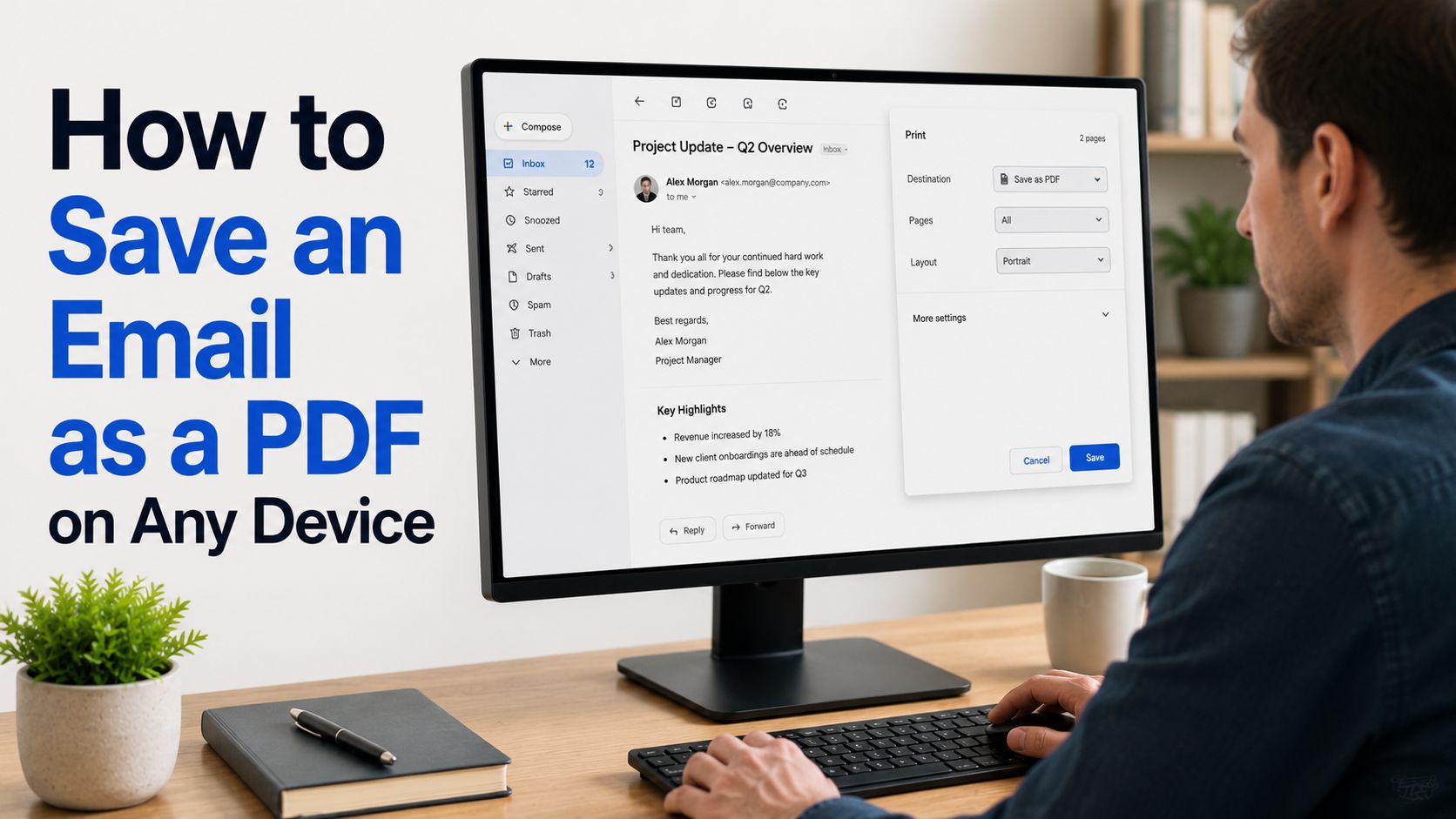
Some email apps and email services don’t have a dedicated Save as PDF button. Instead, you can create a PDF from the email using the Print menu by right-clicking with your mouse.
- Open the email you want to save.
- Click or tap Print.
- Under Printer or Destination, select Save as PDF.
- Choose where you want to save the file.
- Enter a file name.
- Click or tap Save.
On Windows, the printer option is often Microsoft Print to PDF. On a Mac, you’ll usually see a PDF button or Save as PDF in the print menu.
Before saving, review the print preview to make sure it includes everything you need, such as the contents of the email, the sender, recipient, date, and attachments (if shown), and the full conversation thread if you need it.
Why Save Emails?
Saving an email as a PDF creates a permanent copy that you can organize, share, or print whenever you need it. Unlike emails stored in your inbox, PDF files are easy to rename, move into folders, back up, and access without searching through your email account.
You may want to save an email as a PDF to keep receipts and proof of payment, save instructions or confirmations, or store contracts or agreements. Saving an email as a PDF also lets you share the email with someone.
Another benefit is that PDFs preserve the email’s formatting, making them easier to read and less likely to change formatting than content copied into a document.
How to Save an Email as a PDF
Although we covered the general method above, the steps for saving an email as a PDF vary slightly depending on your email service and device. While the process is generally the same: open the email, select Print, choose a Save as PDF option, and save the file, we will cover each provider separately next so everyone can find the exact steps they need to take.
How to Save an Outlook Email as a PDF
You can save Outlook emails as PDFs using either the desktop app or the web version.
Outlook on Windows
To save an Outlook email as a PDF in Windows:
- Open Outlook and select the email you want to save.
- Open the message.
- Click File or More actions, then select Print.
- Under Printer, choose Microsoft Print to PDF.
- Click Print.
- Select a folder, enter a file name, and click Save.
Microsoft says that Windows 10 and Windows 11 include Microsoft Print to PDF, allowing you to create a PDF directly from an Outlook email.
Outlook on the Web
To save an Outlook email as a PDF in your web browser:
- Open Outlook on the web and sign in.
- Open the email you want to save.
- Click the More actions (three dots) menu.
- Select Print.
- In the print dialog, choose Save as PDF as the printer or destination.
- Click Save, then choose a folder and file name.
The exact labels may be different for you depending on your browser, but you’ll typically find a Save as PDF option in the printer or destination menu.
Outlook on Mac
To save an Outlook email as a PDF on a Mac:
- Open Outlook and select the email.
- Click File and choose Print.
- In the print dialog, click the PDF button or menu at the bottom.
- Select Save as PDF.
- Enter a file name, choose a save location, and click Save.
Some versions of Outlook for Mac also include an Export as PDF option. If it’s available, you can use it instead of the Print menu.
How to Save a Gmail Email as a PDF

To save a Gmail email as a PDF on your computer:
- Open Gmail and select the email you want to save.
- Click the Print icon in the upper-right corner of the message, or open the More (three-dots) menu and choose Print.
- In the print dialog, set Destination to Save as PDF.
Click Save. - Choose a folder, enter a file name, and save the PDF.
You can also open the print dialog using the keyboard shortcut Ctrl + P (Windows) or Command + P (Mac).
If you want to save an entire email conversation, open the full thread first and expand any collapsed messages before printing. Check the print preview to make sure all replies are included in the PDF.
How to Save a Yahoo Mail Email as a PDF
You can save emails from Yahoo Mail as PDFs using the Print feature.
- Open Yahoo Mail and select the email you want to save.
- Click the More (three-dot) menu or the Print icon, if available.
- Select Print.
- In the print dialog, choose Save as PDF as the printer or destination.
- Click Save.
- Choose a folder, enter a file name, and save the PDF.
If you don’t see the Print option in the menu, look for a printer icon in the email toolbar. You can also open the print dialog by pressing Ctrl + P on Windows or Command + P on a Mac.
Saving an email on your phone
Saving an email as a PDF on a phone or tablet is just as easy as doing it on a computer. Whether you use an iPhone or Android device, you can create a PDF copy using the built-in print options in your email app. Follow the steps below to save, store, and share your emails whenever you need them.
How to Save an Email as a PDF on iPhone
You can save emails as PDFs on an iPhone using the built-in Print feature in the Apple Mail app.
- Open the email in the Mail app.
- Tap the Reply or Share button.
- Tap Print.
- Pinch out on the print preview to open it as a PDF.
- Tap the Share button.
- Select Save to Files.
- Choose a folder, enter a file name if needed, and tap Save.
You can save the PDF to iCloud Drive, On My iPhone, or another location available in the Files app.
How to Save an Email as a PDF on Android

Most Android phones let you save emails as PDFs using the Print option. The steps are similar across Gmail and other email apps.
- Open the email you want to save.
- Tap the More (three-dot) menu.
- Select Print.
- Choose Save as PDF from the printer menu.
- Tap the Save or PDF icon.
- Choose a file name and save location.
- Tap Save.
The exact menu names may vary depending on your phone and email app, but the process is generally the same.
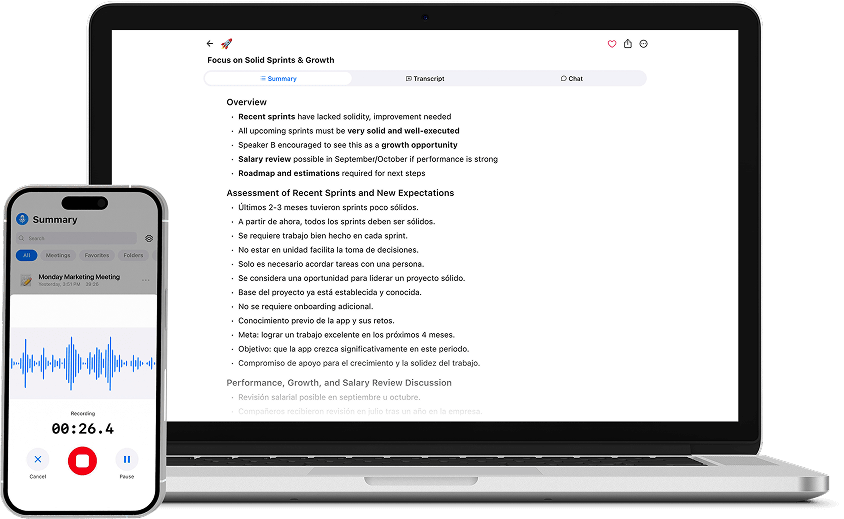
Create Perfect Summaries with Summary AI
Saving an email as a PDF is a simple way to keep important messages organized, backed up, and easy to share. Whether you use Gmail, Outlook, Yahoo Mail, Apple Mail, or a mobile device, the process usually takes just a few clicks through the Print option.
For long email threads or messages with a lot of details, AI summary tools from Summary AI can also help you quickly understand the key points before saving or sharing the conversation. By combining PDF storage with email summarization, you can keep your important information easier to manage and find when you need it.