





Typing can take time, and it is not always the easiest way to get your ideas on the page. Speech-to-text can help by turning the words you say into text on the screen. This means you can speak instead of typing. But for this, you need to know how to use speech-to-text and voice typing in Word and Docs.
Microsoft Word and Google Docs both have voice typing tools that are easy to use. They can be useful when you want to write faster or when using a keyboard feels slow. In this guide, you will learn how to turn on speech-to-text in Word and Google Docs and how to use it correctly.
What you need for voice typing

Before you start learning how to use speech-to-text or voice typing in Word and Docs, which are two of the best speech-to-text apps, or at least the most popular, you should make sure you have:
- A computer with a microphone that works
- A good internet connection
- Microsoft Word or Google Docs
- Permission for the app or browser to use your microphone
- A quiet place, if you can find one
In Microsoft Word on a computer, the Dictate tool is available with some Microsoft 365 plans and supported versions of Word. Microsoft also includes Dictate in other Microsoft 365 apps, such as Outlook, PowerPoint, and OneNote. Google Docs Voice Typing works with the latest versions of Chrome, Edge, and Safari.
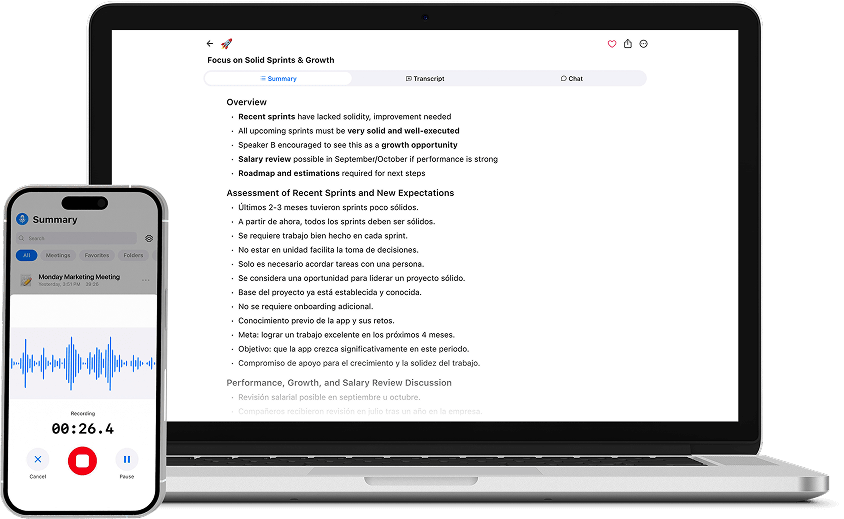
If you want something you can start using right now, try this free online voice-to-text tool from Summary AI. If you have many meetings or other audio or video files you want to transcribe, AI transcription tools can be a great help.
How to use Dictate in Microsoft Word
Microsoft Word has a Dictate tool that lets you type with your voice. When you speak, Word changes your words into text in the document.
1. Open a Word document
Open Microsoft Word and start a new document, or open one you already have. Click where you want your text to appear.
2. Find the Dictate button
Go to the Home tab at the top of Word. Find the Dictate button in the Voice section. Click it to open the Dictate tool. The first time you use Dictate, Word may ask to use your microphone. Allow access so Word can hear you.
3. Start speaking
Click the microphone icon to start Dictate. Wait until Word shows that it is listening, and then start speaking at a normal speed. Your words should appear in the document as you talk.
To stop for a moment, click the microphone icon again. Click it once more when you are ready to continue using speech-to-text.
Dictate settings in Microsoft Word
Before you start usinge speech-to-text in Word, you can open the settings in the Dictate toolbar. The options may look a little different depending on your version of Word and the language you have it set to.
You may see setting options for your spoken language, automatic punctuation, and voice commands.
Choose your spoken language
Make sure Word is set to the language you are going to speak. If the wrong language is selected, Word may not understand you well and the text will most likely have many mistakes. Open the Dictate settings and choose the right language before you start.
Turn on auto punctuation
Auto punctuation lets Word add punctuation while you speak. It can add things like periods, commas, and question marks based on your voice and pauses. Turn this option on if you want Word to add punctuation for you.
You can also use voice commands to say punctuation out loud. For example, you can say “period,” “comma,” or “question mark.” You can also say “new line” or “new paragraph” when you want to move to a new part of the document.
Filter sensitive phrases
Word has a setting that filters sensitive words or phrases in speech-to-text. When this setting is turned on, Word may hide some words by replacing part of them with asterisks. You can check the Dictate settings if you want to change how Word handles these words.
Use the Help option
The Dictate toolbar also has a Help option. It can show you the voice commands that Word understands. This can be useful if you want to be able to control more of your speech-to-text experience and your document with your voice. For example, you can even use commands to not only use punctuation, but also to remove text or change formatting.
Voice commands to use in Microsoft Word

Voice commands let you do more than turn speech into text. They can also help you make changes to your text without using the keyboard.
Some useful commands include:
- “New line” moves the cursor to a new line
- “New paragraph” starts a new paragraph
- “Undo” removes your last action
- “Delete that” deletes the last word or phrase
- “Backspace” removes the previous character
- “Bold that” makes selected text bold
- “Italicize that” makes selected text italic
- “Select paragraph” selects the current paragraph
- “Go to the end of the line” moves the cursor to the end of the line
- “Stop dictating” turns Dictate off
For example, to dictate using voice commands, you could say:
“Here is my task list for July 15. New paragraph. Review the project brief. New line. Send the client update. New line. Schedule the team meeting.”
If Word makes a change you do not want, you can say “undo” to remove the last action.
Use Dictate in other Microsoft apps
Dictate is also available in other Microsoft apps. You can use it in Outlook to write emails and in PowerPoint to add text to your slides.
Use Dictate in Outlook
You can use Dictate when writing an email in Microsoft Outlook. It works in a similar way to Dictate in Word.
To use it:
- Open a new email.
- Click inside the message box.
- Find and select Dictate.
- Click the microphone icon.
- Start speaking.
Outlook will turn your words into text as you speak. You can pause Dictate, change its settings, and use voice commands.
This can be useful when you want to write an email without typing it by hand.
Use Dictate in PowerPoint
You can also use Dictate in Microsoft PowerPoint to add text to a slide.
To use it:
- Open your presentation.
- Add a text box or click inside one that is already there.
- Place the cursor where you want the text to appear.
- Go to the Home tab.
- Click Dictate.
- Start speaking.
PowerPoint will add your spoken words to the text box. Make sure the cursor is inside the text box before you start Dictate.
How to use Voice Typing in Google Docs
Google Docs also has a voice typing tool. It is free to use and works in your browser. This can be a good choice if you do not use Microsoft 365 or if you often work in Google Docs.
1. Open a Google Doc
Go to Google Docs and sign in to your Google account. Open a new blank document or a file you already have.
2. Open Voice Typing
Click Tools in the menu at the top of the page. Then select Voice typing. A small microphone box will appear on the left side of the document.
3. Choose your language
Use the menu above the microphone to choose the language you want to speak. Make sure you select the right language before you start. This can help Google Docs understand you better.
4. Click the microphone and speak
When you are ready, click the microphone icon. Start speaking clearly at a normal speed. Google Docs will turn your speech into text and add it to the document.
When you are finished, click the microphone again to stop Voice Typing.

Google Docs Voice Typing commands
Google Docs also lets you use voice commands while you are speaking. These commands can help you add punctuation, move to a new line, or make simple changes to your text.
Some useful commands include:
- “Period” adds a period
- “Comma” adds a comma
- “Question mark” adds a question mark
- “Colon” adds a colon
- “New line” moves to a new line
- “New paragraph” starts a new paragraph
- “Select paragraph” selects the current paragraph
- “Go to the end of the line” moves the cursor to the end of the line
- “Italicize” makes selected text italic
- “Bold” makes selected text bold
- “Delete that” removes the last word or phrase
The Voice Typing box also has a Help option. You can open it to see more commands and learn what you can do with your voice.
Tips for better voice typing
Voice typing works better when you keep things simple and make it easy for the tool to hear you.
- Speak clearly and at a normal speed
- Try to work in a quiet place
- Keep your microphone close enough to hear your voice
- Pause for a moment between sentences
- Say punctuation out loud if it is not added correctly
- Read through the text when you are done
- Check the Help menu to learn more voice commands
- Use your keyboard when you need to make a quick change
You do not need to speak very slowly or use a formal voice. Go ahead and speak in a natural way, then check and edit the text when you finish.
Turn speech into text with Summary AI
Voice typing is useful when you want to write while you speak. But sometimes you may already have an audio file or a recording that you want to turn into text. In that case, a voice-to-text tool can be a better choice.
For bigger projects like transcribing meetings or long videos, you can use Summary AI’s AI transcription features. Summary AI can also help you find the main points in a recording and create a clear summary, so you do not have to type everything by hand.