



Student life is about more than just going to class. You may need to keep up with readings, assignments, group projects, exams, part-time work, and personal plans all at once. The right productivity tools will not do the work for you, but they can help you stay organized, avoid distractions, and spend more time focusing on your studies.
This guide looks at some of the best productivity tools for students in 2026. You do not need to download every app you find. It is usually better to choose a few tools that help with the problems you deal with most.
What are student productivity tools?
Student productivity tools are apps and platforms that help students organize and manage their schoolwork. They can help with planning, time management, note-taking, writing, research, revision, and group projects.
The main goal is to make it easier to keep track of deadlines and tasks. When these are organized and tracked in one place, you can spend more time learning and less time trying to remember what needs to be done.
Common ways students make use of productivity tools include:
- Keeping track of assignments and deadlines
- Planning study sessions
- Taking and organizing notes
- Summarizing long reading materials
- Writing and editing papers
- Organizing citations and research sources
- Studying for exams with active recall
- Staying focused while studying
- Managing group projects
The 15 best student productivity tools
The best productivity tools are the ones that make studying easier without adding more work to your day. Choose the tools that fit the way you study and the problems you want to solve.
1. Summary AI: best for online learning and recorded lectures
Online classes often come with long recorded lectures, webinars, and video lessons. Going back through an entire recording just to find one important point can take a lot of time.
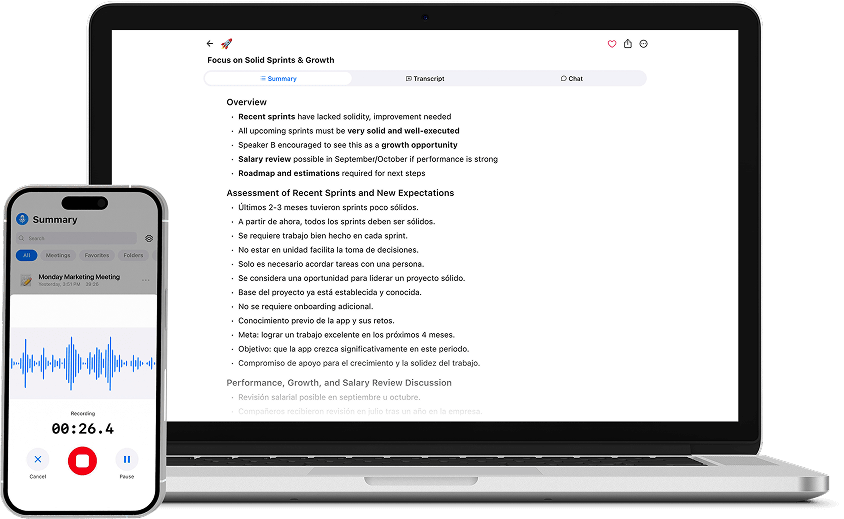
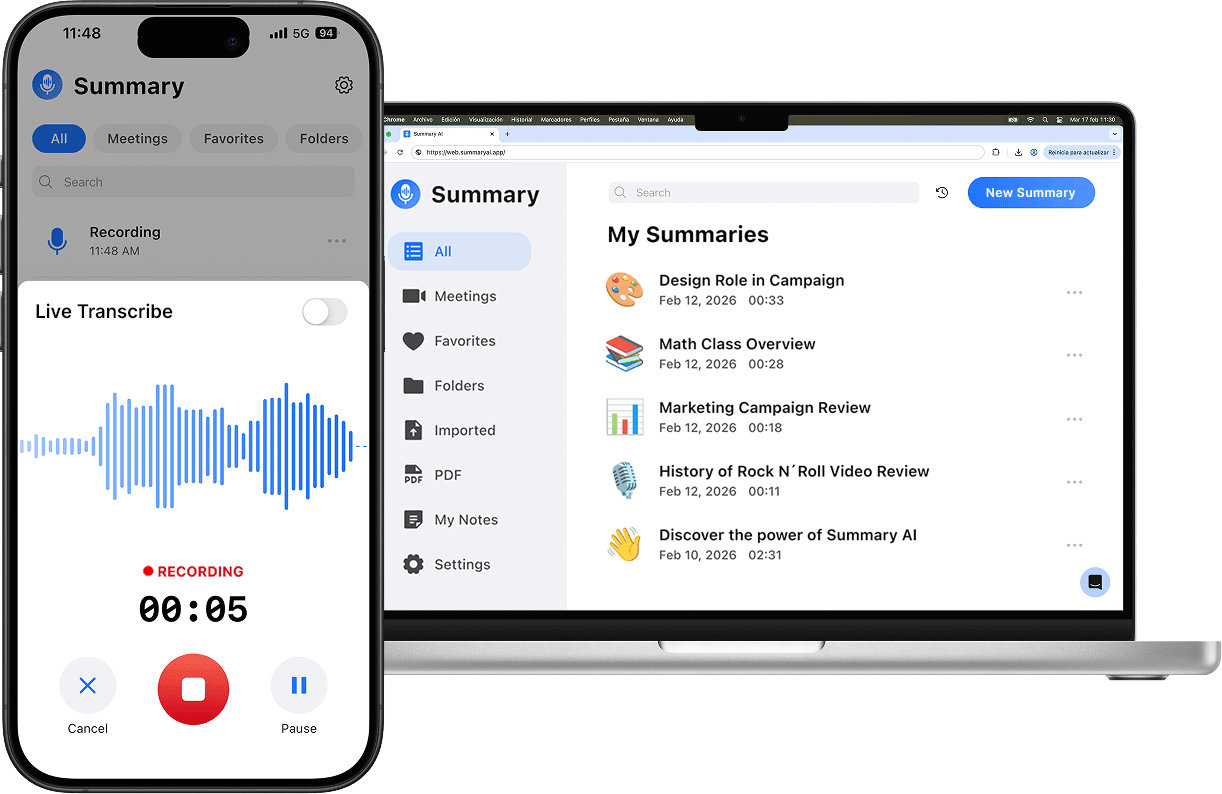
Summary AI is an AI note taker that helps by turning recorded and transcribed lectures into summaries, so you always have organized notes you can study from. Instead of replaying a full lesson, you can review the main ideas in a much shorter format.
Students who take online classes can use it to:
- Transcribe recorded lectures
- Create short summaries of long lessons
- Turn lectures into clear study notes
- Review important points before exams
- Find information without watching the whole recording again
A study routine you can use is to watch the lecture first, then use Summary AI to create an AI transcript and make a summary. After that, review the notes, check important details against the recording, and turn the key points into your own study notes or revision questions.
2. Notion: best for all-in-one organization
Notion is a flexible productivity tool that can help students keep notes, assignments, reading lists, project plans, revision schedules, and personal goals in one place.
A simple setup is enough when it comes to Notion, otherwise you can get overwhelmed. Create a page for each course and add lecture notes, assignment details, useful links, deadlines, and checklists.
Try not to spend too much time creating complicated systems. The best Notion setup is one that helps you quickly find what you need and get started on your work.
3. Google Calendar: best for time blocking
A to-do list tells you what needs to be done. Create a new Google Calendar for school to help you decide when you are going to do your tasks. You can also try Google Tasks for better tracking of what to do.
Google Calendar is useful for giving each task and commitment a place in your schedule.
For example, instead of adding one large task called “Write history essay,” you could schedule separate blocks for research, outlining, drafting, editing, and proofreading. Breaking a big assignment into smaller sessions can make it feel much easier to manage. You can even share a Google Calendar with your classmates to study together or collaborate on projects.
4. Todoist: productivity tool for student task management
Todoist is a simple task manager for students who want to quickly add assignments and keep track of what they need to do next. You can add due dates, labels, reminders, and priority levels without building a complicated system.
Instead of creating one task called “Finish biology report,” break it into smaller steps:
- Read the assignment brief
- Choose a research question
- Find five reliable sources
- Create an outline
- Draft the introduction
- Edit the report
- Check citations
- Submit the final version
Smaller tasks help you make it easier to get started and reduce procrastination.
5. Microsoft OneNote: best for digital note-taking
Microsoft OneNote is a good choice for students who want a flexible digital notebook. You can organize notes by notebook, section, and page, while also adding notes and other content.
It is especially useful for courses with lots of lectures. You can create a section for each module, take notes during class, add slides or PDFs, and write your own summaries later. Learn note taking methods to take notes more efficiently.

6. Google Docs: best for collaborative writing
Google Docs is useful for writing. You can use it for group assignments and sharing notes. Several students can work on the same document at the same time, leave comments, suggest changes, and check earlier versions.
For a group project, you can create one shared document with the project instructions, responsibilities, deadlines, source links, and drafts. Make it clear who is responsible for each part so everyone knows what they need to do.
7. Zotero: best for citations and research
Zotero is a useful tool for students who need formal citations. You can use it for anything from research papers and dissertations to literature reviews and essays.
It helps you save sources as you find them, organize them into collections, and add notes. You can then create citations in the style you choose. This can save a lot of time near the end of a project, when searching for citation info can become frustrating.
A good habit that can save a lot of time is to create a separate Zotero collection for each major assignment and add sources while you research instead of waiting until the final draft.
8. Anki: best for long-term memorization
Anki is a flashcard app based on spaced repetition. It shows you information at different times so you can review it before you forget it.
It works well for subjects that require you to remember a lot of information. These can be subjects such as languages, medicine, law, science, history, and any technical courses. You can use it for memorizing vocabulary, formulas, definitions, dates, and key info.
Try to keep each flashcard focused on one idea.

9. Quizlet: best for quick study sets
Quizlet is another popular free productivity tool for students for studying with flashcards. It is easy to create study sets from your class notes and use them to review definitions and vocabulary.
It is a good option if you want something simple and quick to use. It can also be useful for group revision because classmates can create and share study sets for the same course or exam.
10. Grammarly: best for writing clarity
Grammarly can help students check their writing. It can spot spelling and grammar mistakes, and highlight unclear sentences or other writing issues.
11. Forest: best for focused study sessions
Forest is a student productivity app designed to help you stay focused during study sessions. The way it works is that you plant a virtual tree when you begin, and it grows while you stay away from distracting apps and websites.
It can be useful for students who often check social media, messages, or notifications while studying. You can use it for a 25-minute Pomodoro session or a longer 50-minute focus block.
Before you start, choose a goal. For example, “Read and make notes on pages 30 to 45” is more useful than simply telling yourself to “study.”
12. Cold Turkey: best for blocking distractions
Cold Turkey takes a stricter approach to staying focused. It lets you block distracting websites and apps for a set amount of time.
If you often end up on social media or watching videos, or checking the news while studying, a blocker like Cold Turkey can make it easier to stay on task.
A focused session of 50 minutes may be enough to make good progress. Remember to take breaks between sessions though!
13. Trello: best for group project planning
Trello organizes work using kanban boards. It can be useful for organizing group projects. Students may be able to use it for group assignments.
You can create a board with simple lists such as:
- To do
- This week
- In progress
- Waiting for feedback
- Complete
Each card can include info for the deadline, a checklist of what needs to be done, an assigned person, and other materials like files and comments. A Trello board makes it easier to keep important tasks from getting lost in group chats.
14. Microsoft To Do: best productivity app for study planning
Microsoft To Do is a simple task manager that works well for planning your day. It is especially useful for students who already use Microsoft 365.
You can create lists for each course, add deadlines and reminders, and use the My Day feature to choose the tasks you want to focus on today.
15. Microsoft Teams: best for class communication
Microsoft Teams is a meeting platform often used by schools and universities for online classes. Make sure to use a Teams background appropriate for school when joining calls.
When well-organized, Teams can be really useful for class communication instead of another place full of scattered messages.

Study Smarter With Summary AI
The best student productivity tools help you save time, stay organized, and focus more on learning. Summary AI is an AI Note Taker that can make online learning easier by turning recorded lectures and lessons into transcripts, summaries, and clear notes. Instead of replaying a recording of a long lesson every time you need to review something and taking notes manually, you can quickly go back to the summary of the main points and read only the important details.