


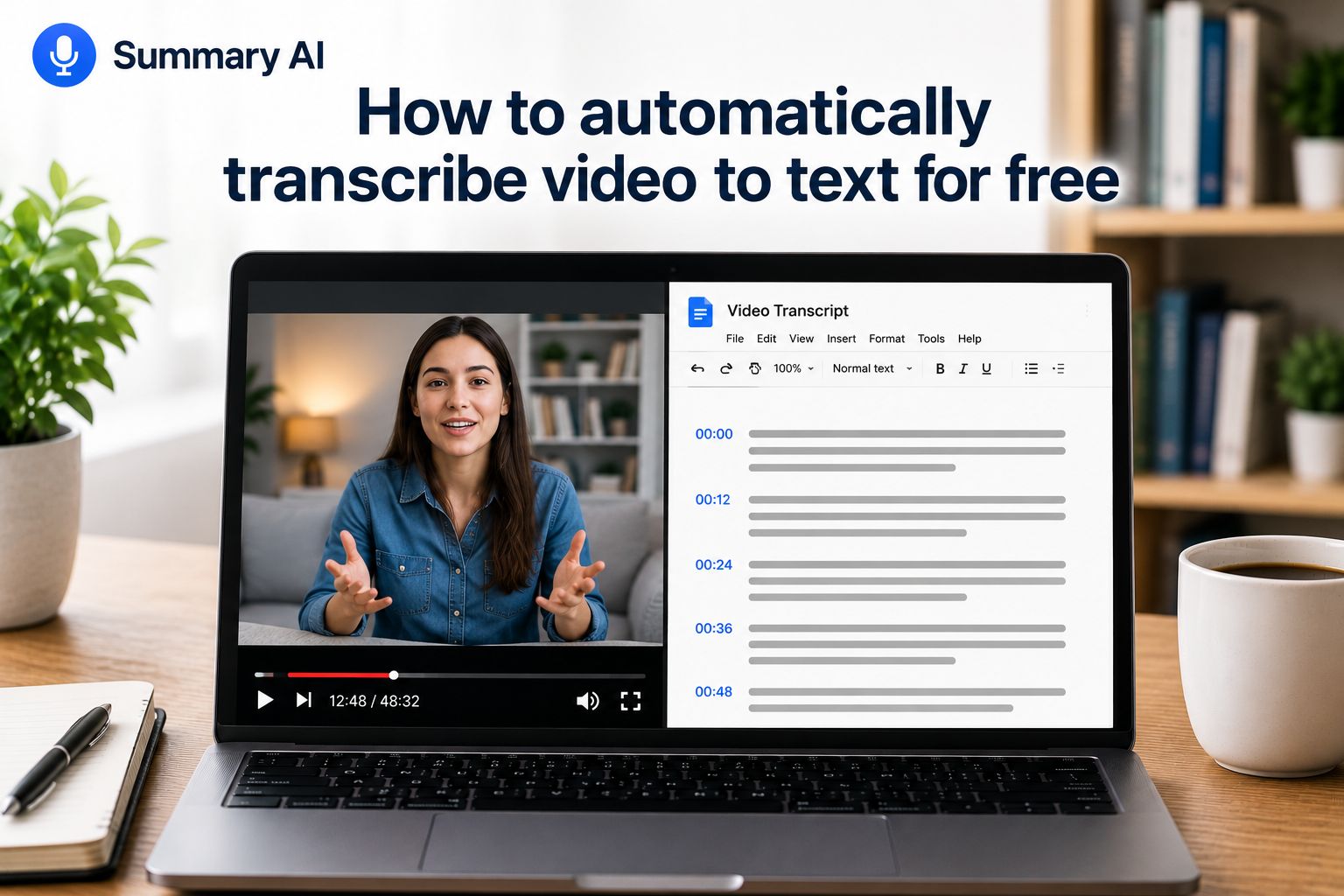
Turning video into text no longer has to mean hours of manual typing. With free automatic transcription tools, you can quickly convert almost any type of video content into editable text in just a few steps. In this guide, we’ll show you how to automatically transcribe video to text for free and how to get the most accurate results.
What you need to transcribe video to text for free
Before you start, make sure you have these things ready:
- A Google account
- Google Docs
- A browser that supports these tools
- The video you want to transcribe
- Speakers turned on
- A quiet place to transcribe in
Google Docs Voice Typing works in the latest versions of Chrome, Edge, and Safari. These free features from Google Docs make it one of the best free video transcript generators. Another tool you can try that is also free is this tool from Summary AI that will allow you to transcribe video to text for free.
How to transcribe video to text with Google Docs
Follow these steps to use Google Docs to transcribe a video to text for free with a feature called Voice typing.
1. Open Google Docs
Sign in to your Google account and open Google Docs.
You can open it from the Google Apps menu. Click the grid icon near your profile picture, then choose Docs.
Next, open a new blank document.
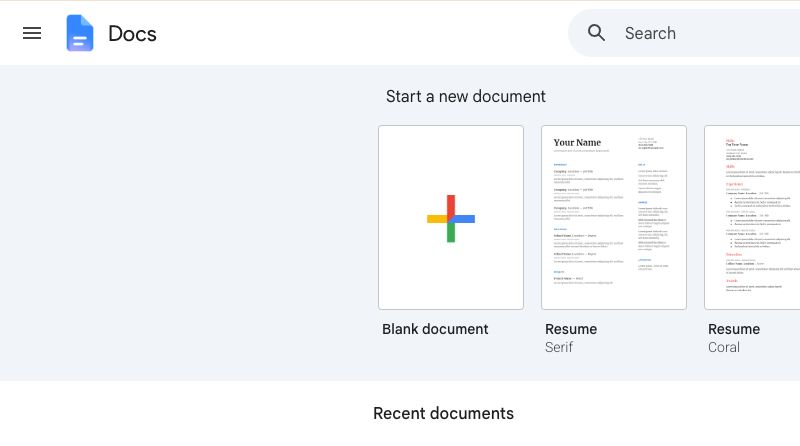
Google Docs works in a similar way to Word and other text editors. After you have the transcript in the document, you can edit the text, remove parts you do not need, add headings, fix mistakes, and make other changes to format it the way you want.
2. Turn on Voice Typing
At the top of the page, click Tools.
Then select Voice typing.
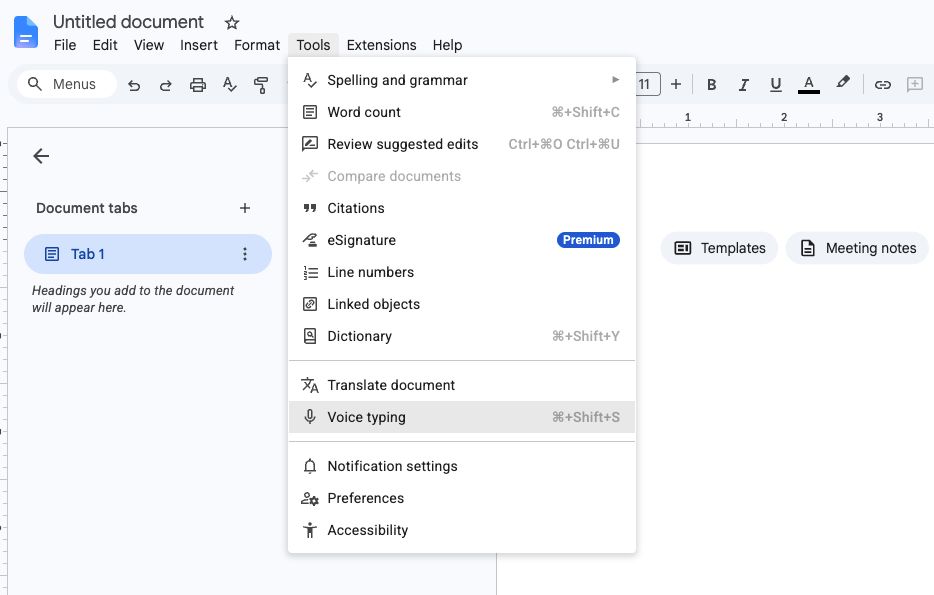
A small microphone box will appear on the left side of the document. If it blocks part of the page, you can move it to another place on the screen.
Before you start, make sure the selected language is the same as the language spoken in the video. You can use the language menu above the microphone to choose a different language if needed.
3. Open and start your video
Open the video you want to turn into text in another browser tab or in a separate window.
Start playing the video before you turn on Voice Typing in Google Docs.
It is better to do it in this order because Voice Typing may stop if you click outside the Google Docs window after starting the microphone. You may miss a few words at the beginning while moving back to Google Docs, but you can type those words in later.
4. Play the audio through your speakers
Google Docs Voice Typing needs to hear the words spoken in the video.
Make sure the video volume is loud enough for your computer microphone to hear it. This method usually works better when the sound comes from your speakers instead of headphones.
Also, try to keep the room as quiet as possible. Close other browser tabs that may play sounds, turn off notifications, and avoid talking while the video is playing.
5. Click the microphone to start transcribing
Go back to your Google Doc and click the microphone icon.
The microphone will show that Voice Typing is now listening. While the video plays, Google Docs will type the spoken words into the document.
Keep the video playing at its normal speed. Voice Typing can usually follow clear speech without a problem. However, it may make more mistakes if the sound quality is poor, there is a lot of background noise, several people are speaking, or two people speak at the same time.
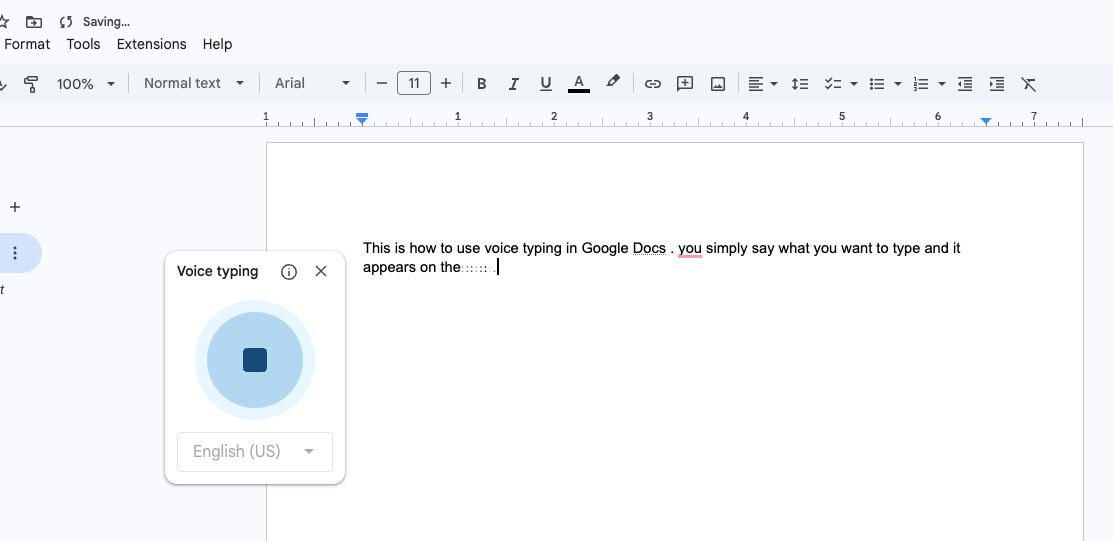
6. Stop the transcription
When the video is finished, click the microphone icon again.
Google Docs will stop listening, and the text it created will remain in your document. You can then read through the transcript, fix any mistakes, change the formatting, copy the text, or save the document for later.
How to add punctuation with Google Docs Voice Typing
Google Docs may not always add punctuation in the right places. While using Voice Typing, you can use voice commands out loud to add punctuation to the text. Some common commands are:
- “Period”
- “Comma”
- “Question mark”
- “Exclamation point”
- “New line”
- “New paragraph”
You can also wait until the transcription is finished and add punctuation when you review the text. This can be easier if you are using Voice Typing to create a first version of the transcript and do not need every word and punctuation mark to be perfect right away.
Review and edit the transcript
The first version of your transcript will usually need some checking. Read through the text after the video is finished. If accuracy is important, compare the transcript with the video and correct any mistakes you find.
Pay special attention to:
- Names that are spelled incorrectly
- Dates or numbers that are wrong
- Words that are missing
- Punctuation in the wrong places
- Technical words or short forms
- Sentences that are difficult to understand
- Parts where two or more people spoke at the same time
When transcribing something important, like an interview or meeting, take more time to check the video transcript and make sure the final text is correct.
Transcribe video files with Summary AI
Google Docs is a useful free option when you want to play a video and turn the speech into text. If you already have a video file, Summary AI gives you a faster and more direct way to create a transcript.
With Summary AI’s free online video-to-text tool, you can upload your file and turn the spoken content into editable text without playing the whole recording through your speakers.
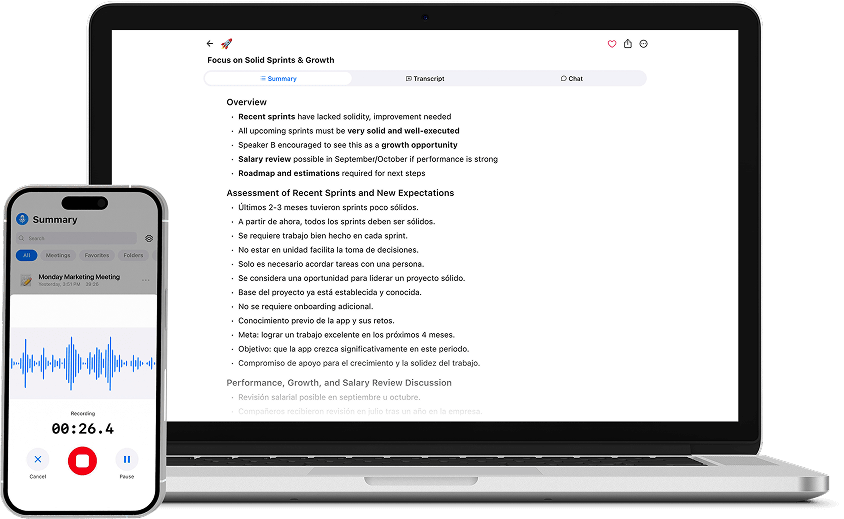
Summary AI’s features using AI transcription can also transcribe meetings and create a clear summary of each call. Its AI Note Taker can capture the conversation, key points, and action items, helping you spend less time taking notes and more time focusing on the meeting.